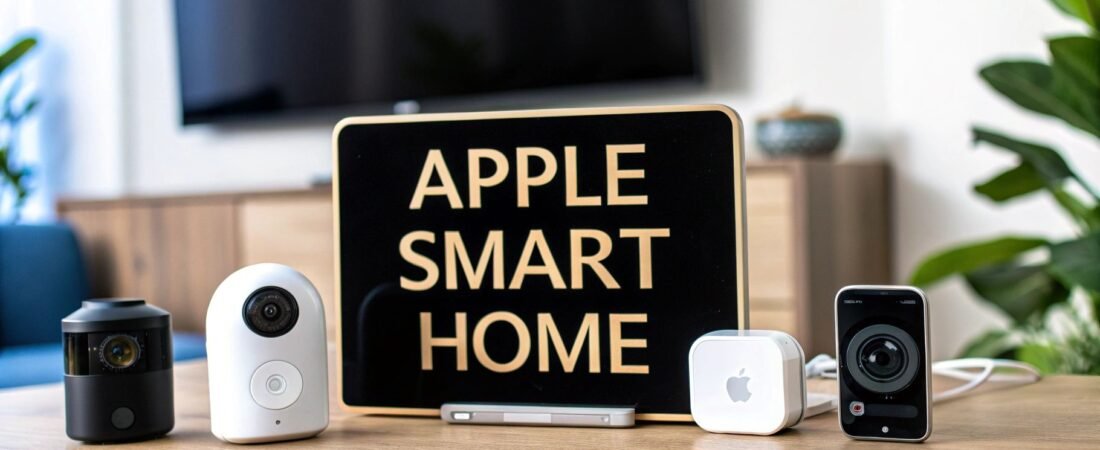
When you hear about Apple home automation devices, you're really talking about smart products built to work inside a secure and private ecosystem called HomeKit. It's not a single brand of gadgets, but rather a whole universe of certified third-party devices—lights, locks, cameras, and more—that you can control right from the Home app on your iPhone, iPad, or Mac.
Unpacking the Apple Smart Home Ecosystem
Thinking of Apple's smart home system as just a bunch of connected gadgets is selling it short. It’s really a complete framework designed from the ground up to be simple, secure, and put you in control. The whole thing is built on a few key components that work together beautifully.
The Three Pillars of Your Apple Smart Home
At its core, the Apple smart home experience rests on three interconnected elements: the HomeKit framework, the Home app, and the devices themselves. Understanding how they interact is the key to building a reliable and intuitive system.
Here's a quick breakdown of how each piece fits into the puzzle:
| Component | Its Role in Your Home |
|---|---|
| HomeKit | Think of this as the universal translator for your smart home. It's the software that lets a smart lock from Schlage speak the same secure language as a light bulb from Philips Hue. You don't see it, but it's what makes everything work together seamlessly. |
| Home App | This is your command center. Pre-installed on every iPhone, iPad, and Mac, the Home app is where you add new devices, group them into rooms, and control everything with a simple tap. It’s the user-friendly face of the entire system. |
| Certified Devices | These are the physical products—the smart plugs, thermostats, and cameras—that carry the "Works with Apple Home" badge. This certification guarantees they meet Apple's strict standards for security, reliability, and ease of use. |
Together, these three pillars create a cohesive and powerful smart home that doesn't require a technical degree to set up or manage.
The Brains Behind the Operation
Apple first waded into the smart home world back in 2014 with the launch of HomeKit. Right from the start, their goal was to create a platform that put privacy and security first, a stark contrast in a market often focused on data collection. This move cemented Apple's reputation as a company you could trust with your home.
Your central hub for managing all of this is the Home app. It’s where the magic happens.
From this single app, you can:
- Add and Organize Devices: Adding a new device is as simple as scanning a QR code. From there, you can assign it to a room, like "Living Room" or "Bedroom," to keep everything organized.
- Control Everything: Whether you're on the couch or across the world, you can check if your front door is locked, turn off all the lights, or adjust the thermostat.
- Create Automations: This is where things get really smart. You can set up rules that run on their own, like having your porch light turn on automatically every day at sunset.
The core promise of Apple's ecosystem is that you don't need to be a tech expert to build a powerful and secure smart home. The focus is on an intuitive experience where things just work, right out of the box.
This tight integration of a universal software framework (HomeKit) and a simple interface (the Home app) is what makes apple home automation devices so compelling. If you're curious to learn more about the tech itself, check out our guide on what is HomeKit. It’s this approach that delivers top-tier security and a user experience that feels like a natural extension of the Apple products you already know and love.
Choosing the Brains of Your Smart Home
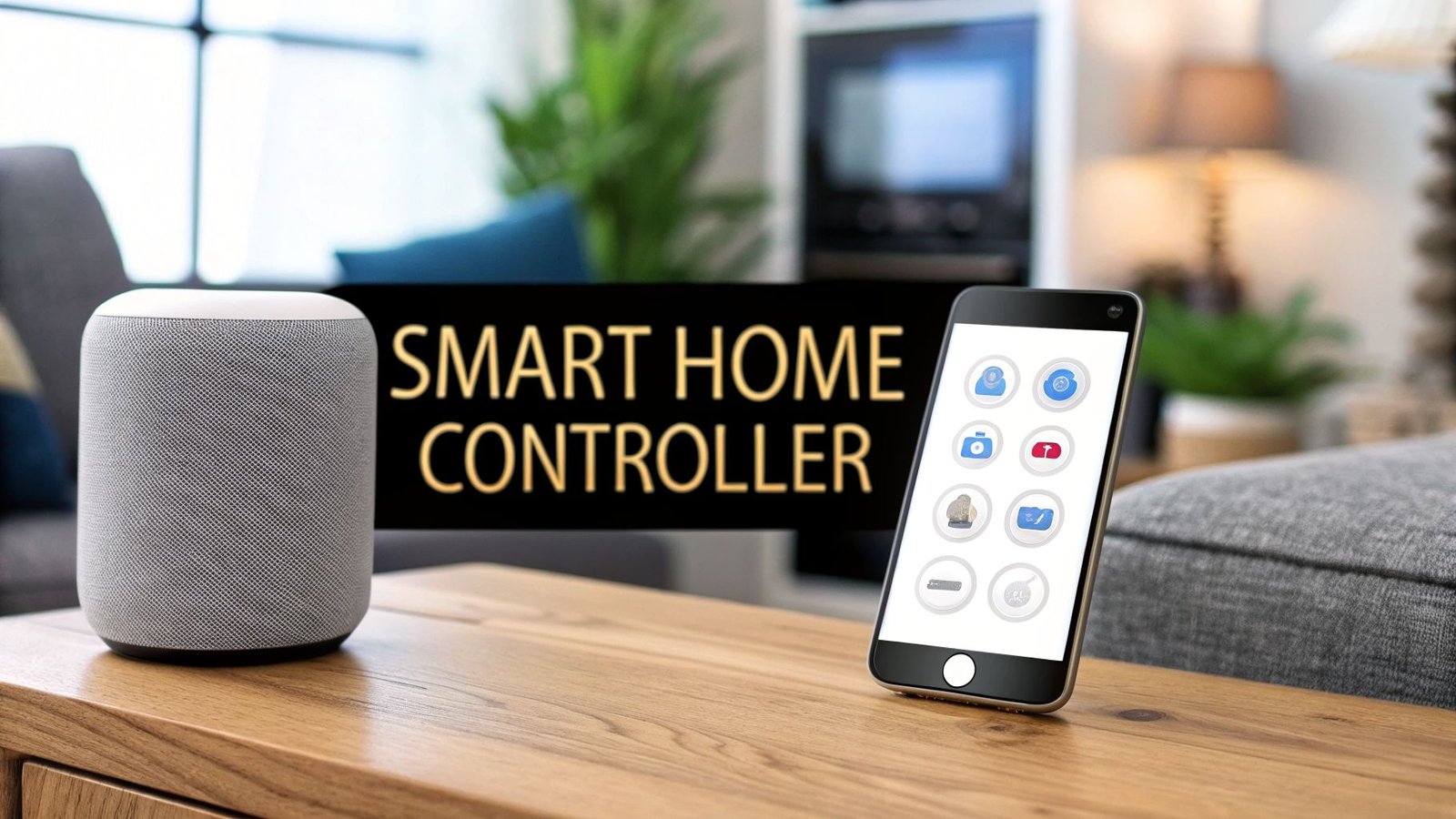
Every smart home needs a central command center, and an Apple-based setup is no different. While you can control individual apple home automation devices directly from your iPhone when you’re connected to your home Wi-Fi, the real magic happens when you add a home hub.
Think of a hub as the "brains" of the entire operation. It’s the device that lets you control your home from anywhere in the world and, more importantly, allows your devices to run automations on their own. Without a hub, you’re just remotely flipping switches. With a hub, your home starts thinking for itself.
For anyone building a smart home around Apple, the role of this central controller is filled by one of three devices: a HomePod, HomePod mini, or an Apple TV. Any of them will get the job done, but each brings something different to the table, letting you pick the one that best fits how you live.
This flowchart breaks down the basic relationship between your phone, your hub, and your devices.
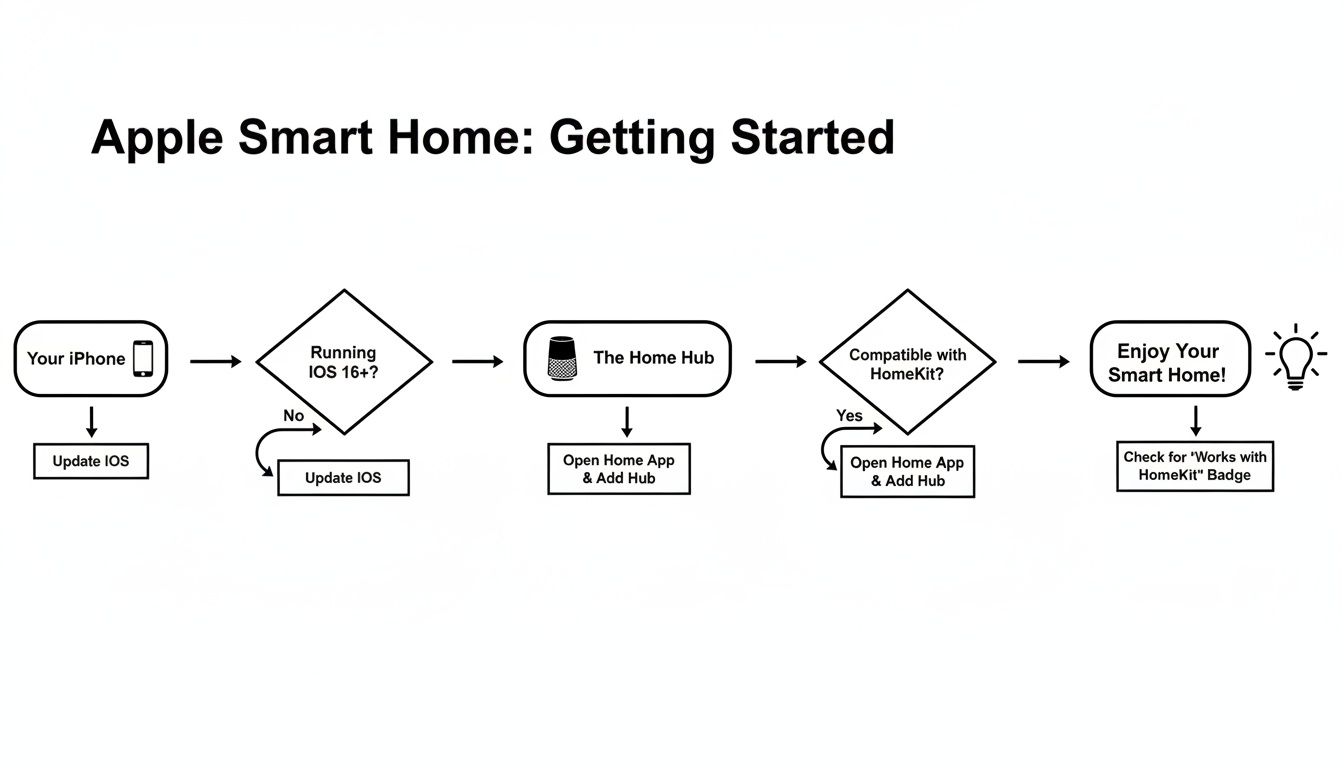
As you can see, the hub is the crucial bridge that makes remote access and automation possible.
Comparing Your Hub Options
Your choice of a home hub really comes down to what else you want it to do. While all three options manage your HomeKit setup perfectly, they each have their own primary purpose. Let's dig into what sets them apart.
-
HomePod: This is Apple's high-fidelity smart speaker. If you’re a music lover who wants incredible, room-filling sound, the full-size HomePod is the obvious choice. It delivers a premium audio experience and serves as a powerful home hub all in one elegant package. It's also fantastic when paired with an Apple TV for a truly immersive home theater setup.
-
HomePod mini: Easily the most popular and affordable entry point. The HomePod mini offers surprisingly big sound for its tiny size and is perfect for placing around the house. Many people buy several to have easy Siri access in multiple rooms and to build a super-reliable Thread mesh network, which is a huge plus for newer smart home gadgets.
-
Apple TV 4K: If your living room is built around a TV, the Apple TV 4K is a no-brainer. It’s a best-in-class streaming box that just so happens to be a silent, always-on home hub. If you already have a soundbar or audio system you love, this is the perfect way to add smart home control without adding another speaker.
The best hub is the one that solves another problem for you. Do you want better music, a better TV experience, or just an affordable way to use Siri? Your answer points to the right device.
Making the Right Decision
The great news is that you don't have to stress too much about picking just one. You can actually have multiple hubs in your home. The Home app will automatically choose one to be the primary "leader," while the others will act as backups and help extend the range and reliability of your network.
For an even more in-depth look, check out our complete smart home hub comparison to see how these stack up against the competition.
Here are a few common starting points:
- For the Music Lover: A full-size HomePod in the living room is the perfect anchor for your system.
- For the Budget-Conscious Starter: You can't go wrong with a HomePod mini. It’s a fantastic, low-cost way to get full hub functionality.
- For the Movie Buff: The Apple TV 4K seamlessly upgrades your entertainment center while running your smart home in the background.
No matter which path you take, adding a hub is the single most important step you can take. It’s what turns a simple collection of apple home automation devices into a genuinely smart, connected home that works for you.
Exploring the Core HomeKit Device Categories
Once you have your hub set up, the real fun begins: adding devices that bring your home to life. The magic of Apple home automation devices isn't just in one gadget; it’s in the incredible variety of products that can completely change how you live in and interact with your space.
The ecosystem is huge, but don't feel overwhelmed. Most people start with a few key categories that offer the biggest "wow" factor and the most immediate, practical benefits. Let's break down the foundational devices that form the backbone of any great smart home and see how they can work together to make your life easier.
Smart Lighting That Adapts to You
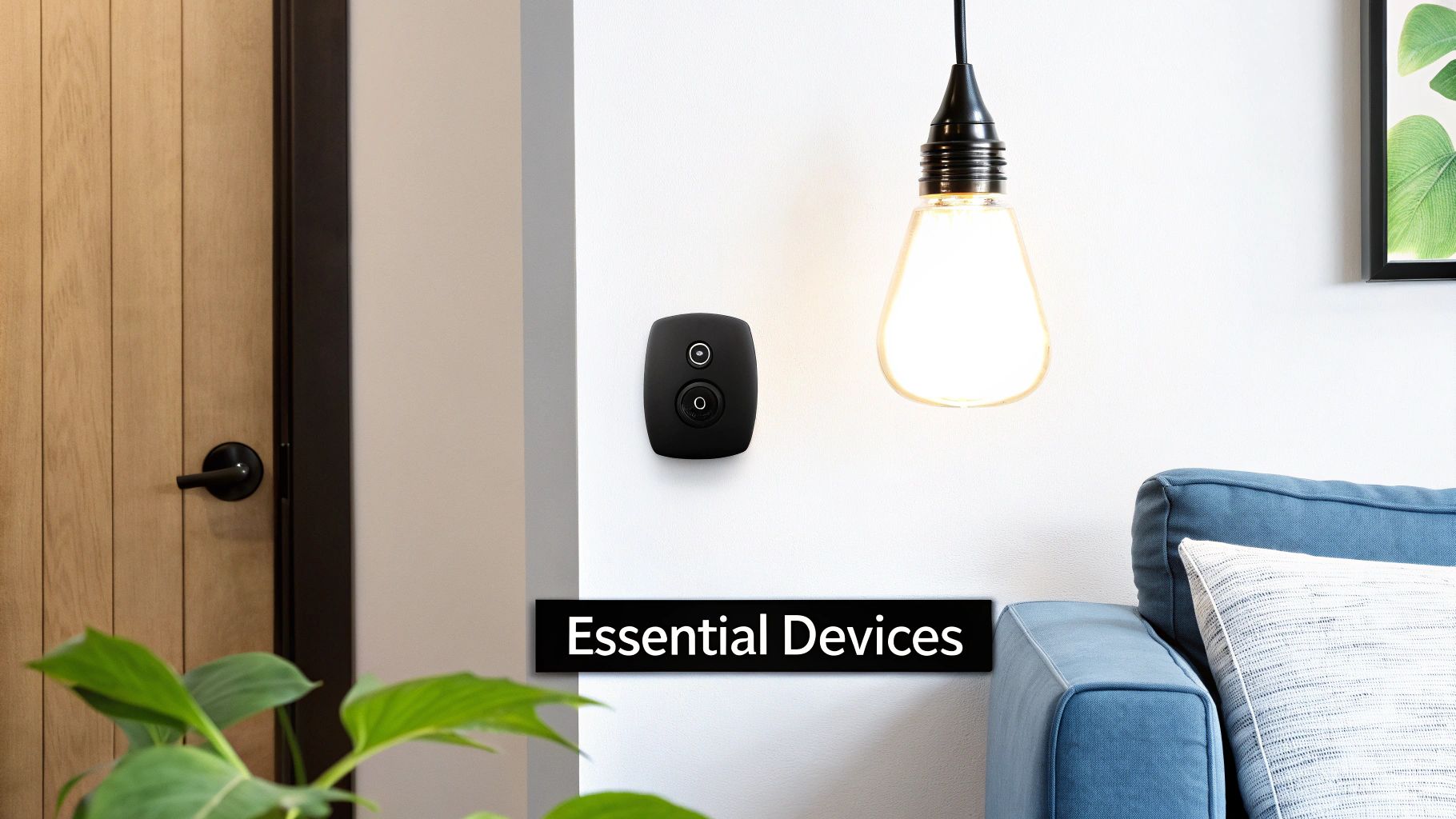
For most people, smart lighting is the gateway into home automation, and it's easy to see why. It's a breeze to install, the effect is instantly noticeable, and its utility goes way beyond just telling Siri to turn the lights on.
Imagine your lights subtly changing their color temperature throughout the day—cool, energizing light in the morning and warm, soft light to help you wind down in the evening. That’s a real feature in Apple Home called Adaptive Lighting, and it’s a perfect example of how smart lighting is as much about wellness as it is about convenience.
You'll generally find three types of products in this category:
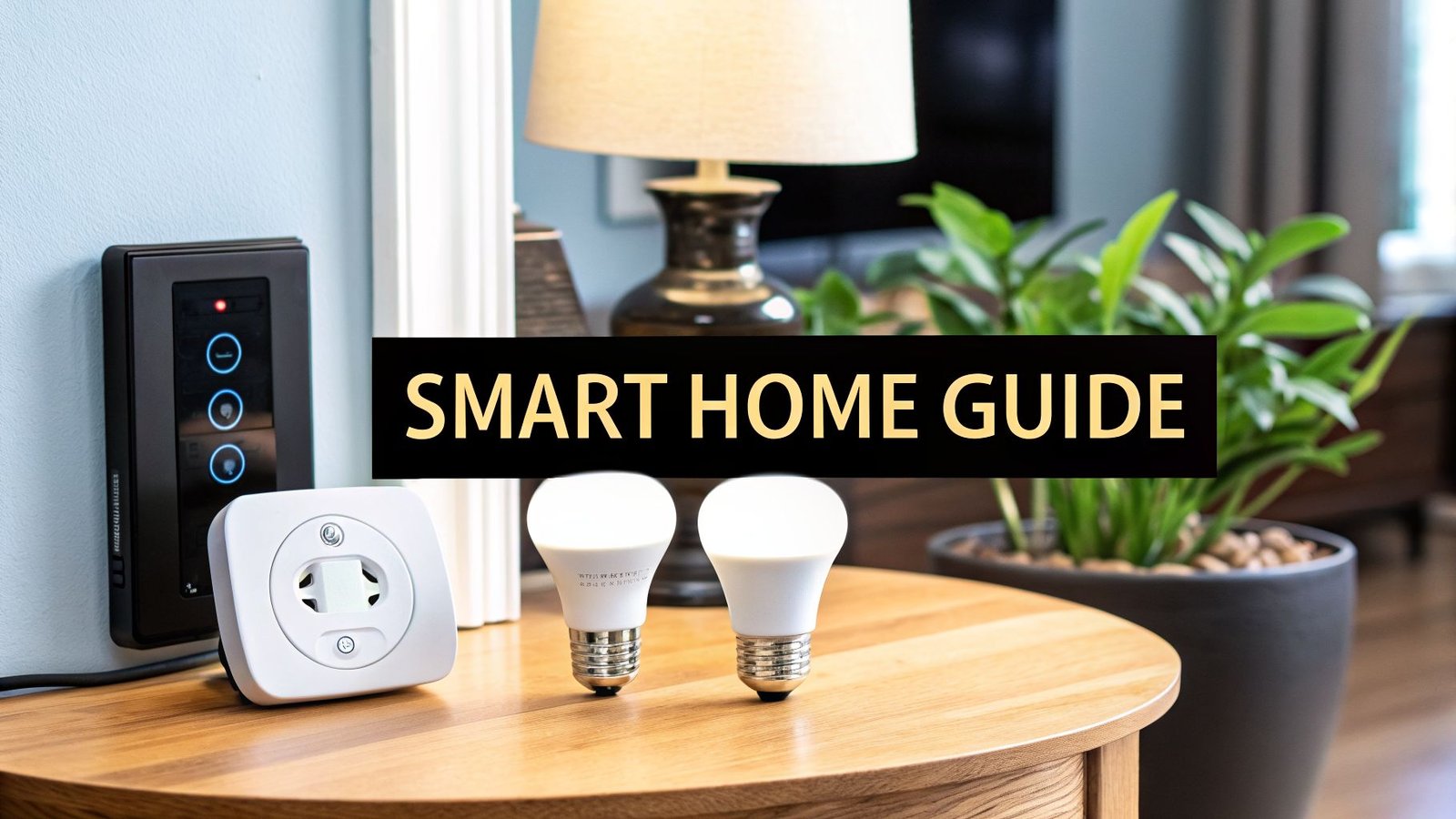
- Smart Bulbs: These are the simplest starting point. Just swap out your old bulbs for ones from brands like Philips Hue or Nanoleaf. Suddenly, you have millions of colors and a huge spectrum of white light at your fingertips to set the perfect mood.
- Smart Switches: What if you love your existing light fixture but want smart control? A smart switch from a company like Lutron or Eve replaces your standard wall switch, making the entire circuit—and whatever lights are on it—instantly smart.
- Light Strips: For that extra touch, light strips are fantastic for accent lighting. Tuck them under cabinets, place them behind a TV for a cool backlight effect, or get creative. If you're looking for ideas, you can explore modern LED strip lighting solutions to add dynamic, colorful personality to any room.
Smart Security for Real Peace of Mind
The next big area is security, where devices work to protect your home and family. This is where Apple's intense focus on privacy really shines. With HomeKit Secure Video, all the video analysis happens privately on your own home hub. The footage is encrypted before it's ever uploaded to iCloud, meaning not even Apple can see it. You are in complete control.
A core promise of HomeKit security is its end-to-end encryption. Only you and the people you specifically invite can see your camera feeds and control your devices. It’s a level of privacy baked into the system from the ground up.
These are the must-have security gadgets:
- Smart Locks: A HomeKit lock from a trusted brand like Schlage or August lets you ditch your physical keys. You can lock or unlock your door with your iPhone or Apple Watch, create temporary digital "keys" for guests, and get alerts whenever the door is used.
- Security Cameras: Cameras from brands like Eufy or Logitech that support HomeKit Secure Video are incredibly smart. They can tell the difference between people, pets, and vehicles, so you only get the alerts that matter. And you can pull up a live feed right in the Home app, no matter where you are.
- Door and Window Sensors: These small, battery-powered sensors are the unsung heroes of security automation. Stick one on a door, and you can create a rule that turns on all the lights and sends you an alert if it opens after 10 PM.
Smart Climate Control for Comfort and Efficiency
Controlling your home's temperature is a perfect job for automation, saving you money on energy bills while keeping you perfectly comfortable. A smart thermostat learns your family's routines and automatically adjusts the heat or AC, ensuring it's just right when you're home and saving energy when you're not.
Thermostats from companies like Ecobee are a popular pick for their seamless HomeKit integration. Just ask Siri to "set the temperature to 72 degrees" or add it to your "Good Night" scene, which could lower the heat, lock the doors, and turn off the lights with one simple command.
These devices are much smarter than a simple schedule. Using your iPhone's location, the thermostat can tell when the last person has left for the day and automatically enter an energy-saving "Away" mode. When it sees someone is on their way back, it can start pre-heating or pre-cooling the house so it's perfect the moment you walk in.
Smart Plugs: The Ultimate Utility Player
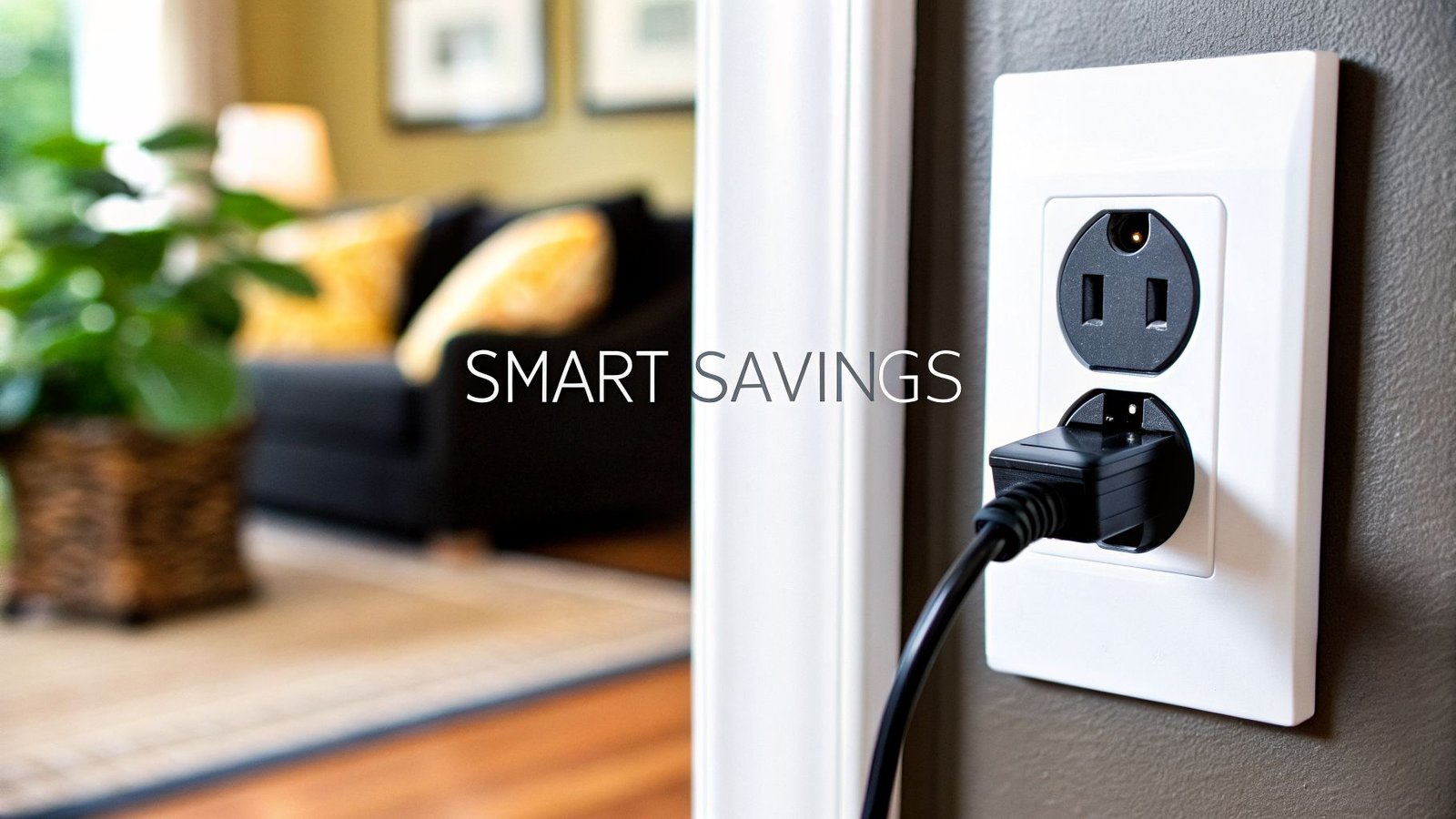
Finally, let's talk about the unsung hero of any smart home: the smart plug. This brilliantly simple device plugs into a normal wall outlet and makes any "dumb" appliance you plug into it instantly smart. It's like a universal adapter for home automation.
That favorite floor lamp you love? The fan in your bedroom? The coffee maker? Plug it into a smart plug from a brand like Eve or Wemo, and it instantly shows up in your Home app, ready to be controlled by Siri or included in your automations.
Here are just a few ideas for what a smart plug can do:
- Morning Routine: Pop your coffee maker on a smart plug and have it automatically start brewing at 7 AM on weekdays.
- Holiday Lights: Set your festive lights to turn on at sunset and off at bedtime, no more messing with those clunky old manual timers.
- Energy Savings: Connect your entertainment center or home office setup to a smart plug and have it power down completely at night, stopping that "vampire drain" from devices on standby.
These categories are the building blocks. You don't need to do it all at once. Start with one or two areas that excite you the most, and as you get comfortable, you can gradually build a connected home that's perfectly suited to your life.
How to Set Up Your First Smart Device
Getting your first apple home automation devices up and running is where Apple's famous simplicity really shines. They’ve managed to make the process take just a couple of minutes, and you can forget about fumbling with weird network settings or downloading a separate, clunky app for every new gadget. All you need is your iPhone.
The secret sauce is the HomeKit setup code. Think of it as a unique, secure key for your new smart device. You'll find it on a little sticker on the product itself or in the manual—it's an eight-digit number paired with a scannable QR-style pattern. This code is what guarantees that only you can add that device to your home, keeping everything private and secure.
The Simple Scan-and-Go Process
Once you've unboxed your new toy and plugged it in, believe it or not, the hard part is over. The rest happens right inside the Home app on your iPhone or iPad.
It really is this easy:
- Open the Home App: Just tap the orange house icon on your screen.
- Add Accessory: Find the "+" icon in the corner and tap "Add Accessory."
- Scan the Code: Your phone’s camera will pop up. Point it at the HomeKit setup code on your device. It scans almost instantly, just like a QR code at a restaurant.
- Confirm and Configure: The Home app then works its magic, securely connecting to the device. It’ll prompt you to assign it to a room (like "Living Room"), give it a name you'll actually remember ("Desk Lamp"), and maybe add it to your favorites for quick access.
And that's it. Seriously. In less than a minute, your new device is part of your home, ready for Siri commands, and can be included in all your cool automations.
Organizing Your Home for Intuitive Control
A little bit of organization right at the beginning will save you a ton of headaches later. As you start adding more devices, grouping them into rooms and zones is what makes your smart home feel genuinely smart, not just a collection of gadgets.
Rooms are the basic building blocks. You can create them for every part of your house—"Kitchen," "Master Bedroom," "Backyard," you name it. This is what lets Siri know that when you say, "turn off the lights," you just mean the lights in the room you're standing in.
Pro Tip: Don't just stop at rooms. Take it a step further with Zones. A Zone is just a group of rooms. For instance, you could create a "Downstairs" Zone that includes your Living Room, Kitchen, and Hallway. Now you can use powerful commands like, "Hey Siri, turn off all the downstairs lights."
Here are a few popular ways people organize their homes:
- By Floor: Create "Upstairs" and "Downstairs" zones.
- By Area: Group all the "Bedrooms" or "Outdoor" spaces.
- By Function: You could even have a "Media" zone that includes your Living Room and Den where the big TVs are.
Taking a few moments to set this up when you add your very first device builds a foundation that can grow with you. It’s what turns a pile of cool apple home automation devices into a truly connected home.
Creating True Automation with Scenes and Triggers
Getting your individual Apple home automation devices online is really just the first step. The real magic happens when all those gadgets start working together, creating a home that seems to know what you need before you even ask. This is where we go beyond just telling Siri to turn on a light and unlock some serious smarts with Scenes and Automations.
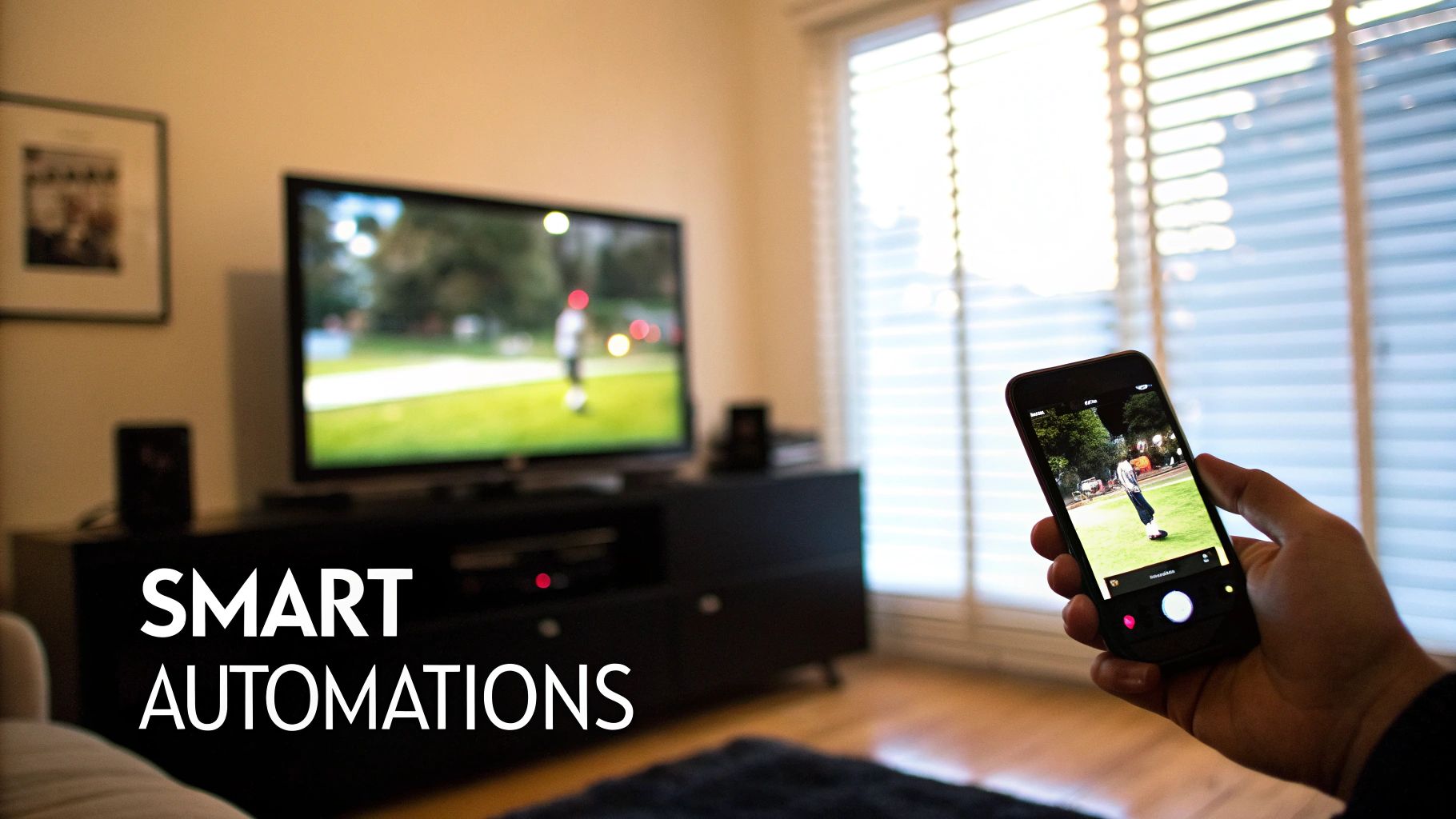
Think of it like this: controlling one lamp from your phone is a fun party trick. But having your entire home’s lighting, temperature, and security shift with a single tap? That’s a genuine lifestyle upgrade.
Understanding Scenes: The One-Tap Presets
A Scene in Apple Home is basically a saved snapshot of your perfect environment, all rolled into one simple button or Siri command. Instead of fiddling with five different settings for five different devices, you just launch the Scene, and everything snaps into place at once. It’s the difference between managing individual tasks and directing an entire orchestra.
Let's say you create a "Movie Night" scene. One command could instantly kick off a whole sequence:
- The main living room lights dim to a cozy 20% brightness.
- Your accent light strips behind the TV glow a cool, cinematic blue.
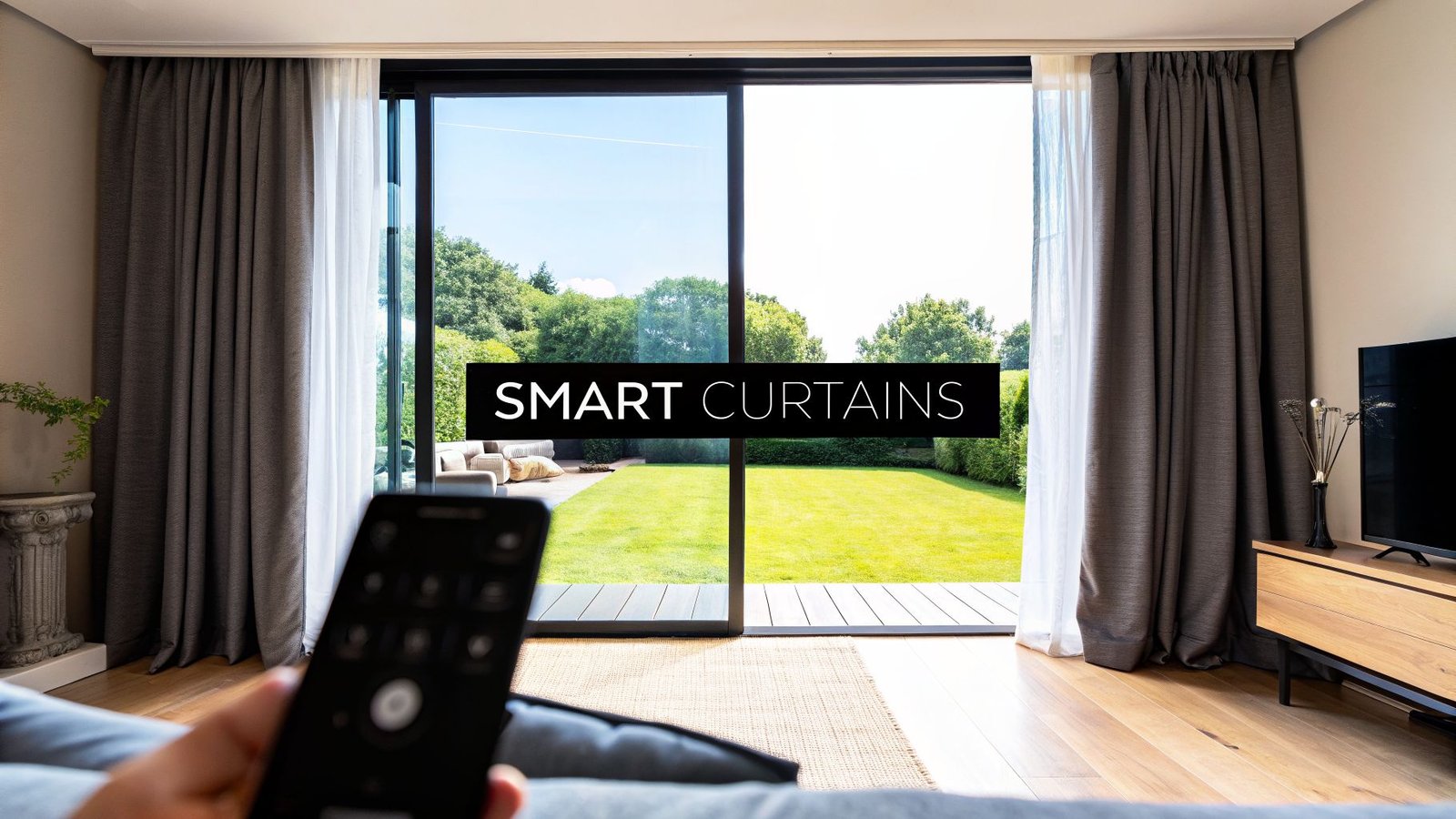
- The smart blinds roll down to kill any outside glare.
- The Apple TV powers on, and the thermostat nudges the temperature up a degree for comfort.
Scenes are all about setting the perfect mood in an instant. They bundle multiple device actions into a single, repeatable command, making complex adjustments completely effortless.
A "Good Night" scene is another classic. With one tap, it could lock your front door, shut off every light downstairs, arm your security system, and dim your bedroom lamp to a soft, warm glow. It's an incredibly powerful shortcut for both convenience and peace of mind.
Automations: The Invisible Assistant
If Scenes are the actions you trigger on demand, Automations are the behind-the-scenes rules that do the work for you. This is the true "set-it-and-forget-it" power of a smart home, where things happen based on specific triggers without you having to lift a finger.
Automations all boil down to a simple "if this, then that" formula. The "if" is your trigger—like the time of day, your location, or a sensor tripping. The "then" is the action you want your devices to perform in response.
This proactive intelligence is what makes a home feel truly smart. It learns the rhythm of your daily life and makes those tiny adjustments that add up to massive convenience.
Practical Automation Triggers You Can Use
The Home app gives you a few powerful trigger types to build your automations around. Let’s break down the most common ones and what you can do with them.
-
Time of Day: This is the most straightforward trigger. You can set automations to run at a specific time, at sunrise, or at sunset. A great example is having your porch lights automatically switch on 15 minutes after the sun goes down each evening.
-
People Arriving or Leaving: By tapping into your iPhone's location, your home knows when you're on your way back or heading out. You could create an automation that turns on the entryway lights, adjusts the thermostat to your preferred temperature, and unlocks the back door as you pull into the driveway.
-
A Sensor Detects Something: This is where things get really fun and creative. A motion sensor in the hallway could trigger the lights to turn on at a very dim level for those late-night trips to the kitchen. A contact sensor on a window could ping your phone if it's opened while the air conditioning is running.
-
An Accessory is Controlled: You can even have one device’s action trigger another. For instance, you could set it up so that turning on your bathroom vanity light in the morning automatically kicks on the exhaust fan.
Building these automations is what finally transforms your collection of Apple home automation devices from a pile of cool gadgets into a single, cohesive system. You end up with a home that doesn't just wait for your commands but actively works to make your day smoother and safer, all on its own.
Bringing More Devices into Your Apple Home with Matter and Bridges
One of the biggest headaches when starting a smart home is figuring out what works with what. Will that smart lock you just bought play nice with your Apple setup? Thankfully, the world of Apple home automation devices has become much more inclusive, primarily because of two game-changing technologies: smart bridges and the Matter standard.
Think of a smart home bridge like a language interpreter. A great example is the Philips Hue Bridge. A single Hue light bulb can't talk directly to HomeKit. But once you plug the Hue Bridge into your router, it translates for all your Hue devices, suddenly making every bulb, switch, and sensor show up in your Home app as if they were native.
Why You Might Still Need a Bridge
A bridge is a small, dedicated hub from a specific brand (like Philips Hue or Lutron) that connects to your network. Its job is to manage all of that brand's devices and translate their communications for HomeKit.
This might sound like an extra step, but it offers some huge advantages:
- Massive Device Selection: Bridges instantly unlock entire product lines. You're no longer limited to just the handful of "HomeKit-certified" devices a company makes; you get access to their whole catalog.
- Rock-Solid Reliability: Many bridges create their own ultra-stable mesh networks using protocols like Zigbee or a proprietary one like Lutron's Clear Connect. This takes a ton of traffic off your Wi-Fi, leading to a faster and more dependable smart home.
Matter: The Universal Language of Smart Homes
While bridges are fantastic for specific brands, a new standard called Matter is here to solve the compatibility problem for good. Think of Matter as a universal translator for the entire smart home industry. It’s a massive team-up between Apple, Google, Amazon, and hundreds of other companies.
The goal is simple: if you see the Matter logo on a box, it will work with your Apple Home. Period.
Matter is like the USB of the smart home. It creates one single, open-source standard so devices from totally different companies can talk to each other directly, without needing a special bridge or a company's cloud server.
This means you can grab a Matter-certified thermostat from one brand and a Matter-certified smart plug from another, and you can be absolutely confident they’ll set up seamlessly in the Apple Home app.
If you're curious about the tech behind how these devices chat, our guide on the different types of smart home protocols is a great next step. Matter is truly future-proofing the smart home, giving you the freedom to pick the best device for the job, no matter who makes it.
Common Questions About Apple Home Automation
Jumping into the world of smart homes always sparks a few questions. As you start looking at different apple home automation devices, you'll naturally wonder about how secure everything is, what works with what, and what you really need to buy to get things running. Let's tackle some of the most common questions head-on.
Before we even get to the devices, let's talk about your home network. A secure smart home starts with a secure foundation. It’s a great idea to check out these expert tips to secure your Wi-Fi network to make sure everything is locked down. Getting this right from the start is the best way to protect your privacy and all your connected gadgets.
Is Apple HomeKit Secure?
In a word: yes. Security and privacy aren't just features; they're at the very core of how HomeKit is designed. Every bit of communication—whether it's from your iPhone to a lightbulb or from your HomePod to your thermostat—is protected with end-to-end encryption. This is a massive advantage over many other smart home platforms.
Apple has a strict policy of not snooping on your data for advertising. They simply don't mine your smart home habits. Take HomeKit Secure Video, for example. Your camera footage is analyzed on your local hub (like your Apple TV or HomePod) and encrypted before it ever touches iCloud. This design ensures that you, and only you, can see your recordings.
HomeKit’s architecture is built on the principle of local processing and robust encryption. Your home's data belongs to you, and the system is designed to keep it that way.
Do I Need a Hub for Every Device?
Nope, you don't. But you'll definitely want one to get the most out of your setup. When you're at home, you can control your HomeKit devices directly from your iPhone or iPad over your local Wi-Fi or Bluetooth connection. Easy.
However, a dedicated home hub—like a HomePod, HomePod mini, or Apple TV—is the key to unlocking the real magic. It handles two crucial jobs:
- Remote Access: Want to turn off a light you left on or check your front door lock while you're at work? The hub makes that possible.
- Automations: The hub acts as the brain for your smart home, running all your automations in the background. It’s what turns the lights on at sunset or runs your "Good Morning" scene, even if your phone is off.
Can I Use Devices Without the HomeKit Logo?
You absolutely can. The smart home world is thankfully becoming less of a walled garden. While the "Works with Apple Home" badge is still the gold standard for guaranteed, out-of-the-box compatibility, the new Matter standard is a total game-changer.
If a device supports Matter, it will work with Apple Home—no matter who makes it. On top of that, many popular non-HomeKit devices (like the much-loved Philips Hue lights) can be integrated into your system using a simple bridge from the manufacturer. This gives you way more freedom to pick the best apple home automation devices without being locked into a single ecosystem.
At Automated Home Guide, we provide the resources you need to build a smarter, safer home. Explore our expert guides and reviews to make informed decisions about your home automation journey. Find out more at https://automatedhomeguide.com.
Leave a Reply