Let's get one thing straight: the single most important decision you'll make for your smart home has nothing to do with fancy gadgets. It’s all about the networking gear you choose. Get this wrong, and you're in for a world of buffering, dropped connections, and frustrating glitches.
Think of your network as the digital foundation of your house. If the foundation is shaky, everything you build on top of it—from smart lights to security cameras—will be unstable.
Building Your Smart Home's Digital Foundation

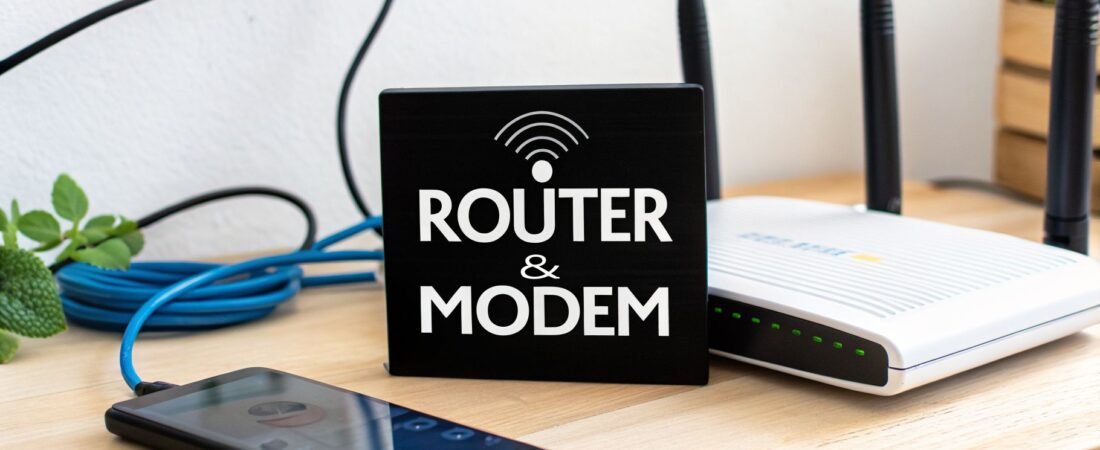
Before we get into specific models and speeds, we need to cover the basics. People often use the terms "modem" and "router" interchangeably, but they're two completely different pieces of hardware doing two very different jobs. Understanding this difference is the first step to building a network that won't let you down.
Modem vs. Router: The Core Components
So, what's what?
- The Modem: This is your on-ramp to the internet. It takes the signal from your Internet Service Provider (ISP)—via a cable or fiber line—and translates it into a digital connection your network can use. Without a modem, you're offline.
- The Router: This is your network's traffic controller. It takes that single internet connection from the modem and creates your local Wi-Fi network, letting all your devices get online at the same time.
Your laptop, smart TV, thermostat, and doorbell camera all get their marching orders from the router. It manages all that traffic to make sure everything runs smoothly. For any modern home, you absolutely need both.
Gateway vs. Separate Devices: A Critical Choice
Now, here’s where most people make their first mistake. Your ISP will happily rent you a gateway—a single box that acts as both a modem and a router. It sounds convenient, but for a smart home packed with connected devices, it's almost always a bad deal.
My Advice: Always buy your own separate modem and router. Don't rent the combo unit from your provider. The upfront cost might seem like a lot, but you'll usually break even in less than a year by eliminating those monthly rental fees, and the performance benefits are immediate.
When you buy your own gear, you get to pick the best tool for each job. You can get a modem that can handle the fastest speeds your ISP offers and pair it with a powerful router designed for the demands of a smart home. This avoids bottlenecks and gives you far more control over your network's performance and security.
A strong network is just as crucial as the physical wiring in your walls. If you’re planning a new build or a major renovation, thinking about this from the start can save you a ton of headaches later. We dig deeper into this in our guide to smart home wiring strategies.
Don't Get Ahead of Yourself: Check ISP Compatibility First
Before you even think about Wi-Fi speeds or how many antennas a router has, there's a crucial first step that everyone messes up at least once. Trust me. You have to make sure the modem you buy will actually play nice with your Internet Service Provider (ISP). Buying an incompatible modem is a fantastic way to waste a weekend on hold with tech support, only to end up repackaging it for a return.
For cable internet users, this all comes down to one thing: DOCSIS. It stands for Data Over Cable Service Interface Specification, which is just a fancy way of saying it's the language your modem uses to talk to your ISP's network. Get the wrong "dialect," and you get no internet. Simple as that.
Making Sure Your Modem Speaks the Right Language
Your internet plan is the key here. If you're paying for a blazing-fast gigabit plan (anything up to 1 Gbps), you absolutely need a modem that supports DOCSIS 3.1. You might be tempted to save a few bucks on an older DOCSIS 3.0 model, and while it might technically connect, it will immediately cripple your connection. You'll never see those top-tier speeds you're paying for.
But what if you don't have cable? If you're on a fiber plan, DOCSIS doesn't apply to you at all. Fiber providers use a different piece of hardware called an Optical Network Terminal (ONT) that converts the light signals from the fiber optic cable into a standard internet connection. In most cases, the ONT is provided by your ISP and acts as the "modem." Your only job is to connect a great router to it.
My Best Advice: Before you add anything to your cart, find your ISP's official "approved device list." Just search for "[Your ISP Name] approved modems" (think Xfinity, Spectrum, Cox, etc.). If a modem isn't on that list, there's a good chance they won't even activate it for you.
Your Quick Compatibility Game Plan
So, how do you nail this? It’s pretty straightforward.
- First, what kind of internet do you have? Cable, fiber, and DSL all use different hardware. Identify yours to narrow the search.
- Next, find that approved list on your provider's website. This is your shopping list. Don't deviate from it.
- Finally, match the modem to your speed. For cable, this means getting a DOCSIS 3.1 modem for any plan approaching gigabit speeds.
Following these steps saves you a massive headache. A Comcast Xfinity customer on a gigabit plan will quickly see that only DOCSIS 3.1 modems are certified for that speed. On the other hand, if you have Verizon Fios, you can skip the modem hunt and focus all your energy on finding the perfect router to plug into your existing ONT.
As you're thinking about the long haul, it's also smart to ensure your gear supports modern standards like Internet Protocol Version 6 (IPv6). This is about making sure your network is ready for the future of the internet, not just what works today.
This becomes especially important in a smart home, which can absolutely crush a weak network. Juggling 4K streaming, online gaming, and dozens of smart plugs and cameras at once creates a ton of digital "noise." While research shows 47.55% of people get by with a basic dual-band router, a crowded smart home can easily see speed drops of 30-50% on those networks.
Upgrading to a tri-band router or one of the new Wi-Fi 7 models is how you solve that congestion. They are built to handle many simultaneous, high-demand connections—something the market is responding to with a projected 10.04% CAGR. You can see more on how different router classes handle this kind of strain in this market analysis from Fortune Business Insights.
Matching Wi-Fi Performance to Your Lifestyle
The internet speed you pay for every month is just one part of the equation. What you actually experience—whether your 4K movie streams flawlessly or buffers endlessly—comes down to your router's ability to manage and distribute that speed throughout your home.
I like to think of it this way: your internet plan is the speed limit on a highway, but your router determines how many lanes you have. An old, underpowered router is like a single-lane country road at rush hour. Everything grinds to a halt. A good, modern router, on the other hand, is a multi-lane superhighway, letting all your devices move at top speed without getting in each other's way.
Decoding Wi-Fi Standards for Your Smart Home
The single most important factor dictating your network's performance is its Wi-Fi standard. This technology defines everything from raw speed to how many devices your network can handle at once.
For any home with more than a handful of connected gadgets, you should consider Wi-Fi 6 (802.11ax) the absolute baseline. It was built specifically for the modern, device-heavy smart home.
This quick reference breaks down the core technologies that bring internet into your house, like DOCSIS 3.1 for cable or a fiber connection. Your router's job is to take that connection and turn it into the fast, reliable Wi-Fi you need.

With smart security cameras, lights, speakers, and thermostats all competing for bandwidth, a router running an older standard will quickly become a bottleneck. This is why Wi-Fi 6 is so critical—it uses features like OFDMA to efficiently manage traffic from dozens of devices simultaneously. It’s no surprise that Wi-Fi 6 routers captured a massive 45.92% market share last year, a trend driven by homes that now juggle 20-30 connected devices.
The demand for better home networks is exploding, with the global Wi-Fi router market projected to jump from USD 16.49 billion to over USD 26.08 billion by 2031, as detailed in this Wi-Fi router market report from Mordor Intelligence.
To help you choose, here's a quick comparison of the standards you're most likely to encounter.
Wi-Fi Standard Comparison for Smart Homes
This table compares key Wi-Fi standards to help you decide which is best for your home's device density and speed requirements.
| Feature | Wi-Fi 5 (802.11ac) | Wi-Fi 6 (802.11ax) | Wi-Fi 7 (802.11be) |
|---|---|---|---|
| Max Speed | ~3.5 Gbps | ~9.6 Gbps | ~46 Gbps |
| Key Technology | MU-MIMO | OFDMA, MU-MIMO (enhanced), 1024-QAM | Multi-Link Operation (MLO), 4K-QAM |
| Best For | Basic use: streaming, browsing on a few devices. | Busy smart homes with 25+ devices, 4K streaming, gaming, and video calls. | Extreme future-proofing, AR/VR, 8K streaming, and homes with 50+ high-demand devices. |
| Primary Advantage | Still capable and affordable for light-duty networks. | Drastically improves efficiency and speed in crowded Wi-Fi environments. | Unprecedented speed, capacity, and ultra-low latency for next-gen applications. |
For most people, Wi-Fi 6 hits the sweet spot of performance and price. But if you’re an early adopter or want to build a network that will last the next five years or more, Wi-Fi 7 (802.11be) is the emerging gold standard, offering a massive leap in speed and responsiveness.
Dual-Band vs. Tri-Band: Which Is Right for You?
Next, you'll see routers labeled as "dual-band" or "tri-band." This simply refers to the number of radio frequencies the router uses to broadcast its signal. Think of them as separate Wi-Fi networks broadcast from a single box.
- Dual-Band: These routers offer two bands: a 2.4 GHz band (slower, but with longer range) and a 5 GHz band (much faster, but with shorter range). Most routers automatically steer your devices to the best band.
- Tri-Band: These add a second 5 GHz band, or in the case of Wi-Fi 6E and Wi-Fi 7 routers, an exclusive 6 GHz band. This extra band acts as a private express lane for your most important devices, keeping them free from interference from everything else.
So, is a tri-band router worth the extra money? It comes down to how congested your home network gets.
A household with two people working from home on constant video calls, kids gaming online, a 4K TV streaming, and dozens of smart lights and cameras will feel a huge difference with a tri-band router. It lets you dedicate an entire band to your highest-priority traffic, ensuring your Zoom call doesn't drop just because someone started a download.
On the flip side, a smaller apartment with one person streaming, a laptop, and a few smart plugs will be perfectly happy with a quality dual-band Wi-Fi 6 model. Be realistic about your needs. Don't overspend if you don't have the device density, but don't bottleneck your expensive gadgets to save a few bucks, either.
Solving for Coverage: Single Router vs. Mesh Systems

I’ve seen it a hundred times: someone buys the fastest, most expensive router on the market, but their smart home is still a mess of dropped connections. Why? Because a powerful router is useless if the signal can’t reach your devices.
Once you’ve nailed down your speed requirements, the next big question is coverage. This is where you’ll face a critical decision: stick with one powerful, central router or invest in a multi-point mesh Wi-Fi system.
Think of it this way. A single router is like a big spotlight in the center of a room—great for illuminating a single, open space. A mesh system is more like adding track lighting, letting you strategically place light sources to eliminate every shadow in a complex layout.
When a Single Router Is All You Need
Honestly, a lot of people overbuy. Don't assume you need a complicated mesh network right off the bat. A high-quality single router is often the perfect, most cost-effective solution for many homes.
You're probably a great candidate for a single router if your home fits this profile:
- Smaller Footprint: Your home or apartment is under 2,000 square feet.
- Open Layout: You have a modern, open floor plan without a ton of signal-blocking interior walls.
- Standard Construction: Your walls are made of regular drywall, not thick plaster, brick, or concrete.
A 1,500 sq. ft. condo with a central living area, for instance, is prime territory for one great Wi-Fi 6 or Wi-Fi 7 router. Place it correctly, and it will have no problem blanketing the entire space with a fast, solid signal.
Telltale Signs You Need a Mesh System
On the flip side, some homes are just natural-born Wi-Fi killers. If you’ve ever lost a video call just by walking from the living room to the kitchen, you already know what I’m talking about.
You almost certainly need to be looking at a mesh system if your home has any of these traits:
- Large and Spread Out: Your home is over 2,000 sq. ft., especially if it's a long ranch-style or you need coverage in a detached garage or workshop.
- Multiple Floors: Wi-Fi signals weaken significantly as they travel vertically through floors and ceilings. Multi-story homes are the classic use case for mesh.
- Signal-Blocking Walls: Older homes with plaster and lath are notorious signal blockers, as are any buildings with interior brick, stone, or concrete walls.
Real-World Scenario: Picture a 3,000 sq. ft., two-story house with a home office in the basement. A single router on the main floor will inevitably leave the office and the upstairs bedrooms with frustratingly weak connections. A three-node mesh system—one main router plugged into the modem and two satellite nodes on the other floors—creates a single, unified network that solves this problem for good.
The Power of a Dedicated Backhaul
As you compare mesh systems, you’ll run into the term "dedicated backhaul." Pay close attention to this—it's a feature worth paying for. It means the mesh nodes use a private, exclusive wireless channel to talk to each other, leaving all the other channels completely free for your devices.
Think of it as having an express lane on the highway just for your network traffic. Without a dedicated backhaul, the nodes have to share bandwidth with your laptops and smart speakers, which can slash your available speed by up to 50%.
If you're leaning toward a mesh system, getting the placement right is crucial. For in-depth tips on that, check out our guide on a proper wireless mesh network setup. It will walk you through the process of mapping out your home to eliminate dead zones once and for all.
Getting the Right Features for a Secure, High-Performing Network

Alright, you’ve sorted out the speed and coverage you need. Now comes the part that separates a basic network from a truly smart one: the features. Beyond just connecting you to the internet, a good router's software can make a huge difference in your day-to-day life, giving you control over security and performance.
The spec sheets can be a dizzying list of acronyms and marketing terms. The trick is to ignore the noise and focus on a few key capabilities that deliver real benefits, especially in a home filled with smart devices. Let's zero in on what actually matters.
Prioritize Your Traffic with Quality of Service
Ever been on a critical Zoom call, only to have your video freeze because someone in the next room fired up Netflix in 4K? That's a bandwidth traffic jam, and Quality of Service (QoS) is your tool for clearing it. Think of QoS as the bouncer for your home network, deciding who gets VIP access.
This feature lets you tell your router which devices or applications are the most important. By giving your work laptop priority, you ensure it always has a stable connection for video calls, no matter what else is happening on the network. It’s like creating an express lane on your own personal internet highway.
A solid QoS system usually lets you manage traffic in a couple of ways:
- By Device: You can simply pick your work computer, gaming console, or smart TV from a list and give it top priority.
- By Application: Some routers let you prioritize activities themselves, like "video conferencing" or "online gaming," across all devices.
For anyone working from home or in a household where multiple people are constantly online, this isn't just a nice-to-have; it's a must-have.
Lock Down Your Network with Modern Security
In a smart home, your router is the single point of entry for every connected device—from security cameras and smart locks to your speakers and lights. A weak link here can expose your entire home, which is why robust, modern security is non-negotiable.
The first thing to look for is support for WPA3, the current gold standard for Wi-Fi security. It's a massive upgrade from the older WPA2 protocol, offering much stronger defenses against hackers trying to guess your password. Simply put, it makes breaking into your network significantly harder.
Expert Tip: Don't just stop at WPA3. Make sure the router you choose also gets automatic firmware updates. New security threats pop up all the time, and these updates contain the patches needed to fight them off. Automatic updates mean you're protected without having to think about it.
Another incredibly useful feature is a guest network. This lets you create a separate, firewalled Wi-Fi network just for visitors. They can get online without gaining any access to your primary network or the devices on it, like your computers or file servers. It’s a simple but powerful way to protect your digital privacy. For a more detailed look at securing your network, check out our guide on home network security best practices.
Multi-Gig Ethernet for Future-Proof Speed
While we all love the convenience of Wi-Fi, a wired Ethernet connection is still the undefeated champion of speed and reliability. As internet service providers roll out plans faster than 1 Gbps, the physical ports on your router are becoming a major bottleneck. That's where Multi-Gig Ethernet ports change the game.
A standard Ethernet port is limited to 1 Gigabit per second (Gbps). If you're paying for a 2 Gbps fiber plan but are plugged into a standard port, you're leaving half your speed on the table. A Multi-Gig port, however, is built to handle speeds of 2.5 Gbps, 5 Gbps, or even 10 Gbps.
So, who really needs this today?
- Content Creators uploading and downloading massive 4K video files.
- Power Users with internet plans that exceed 1 Gbps.
- Anyone with a Home Server or Network Attached Storage (NAS) who needs to move large files around their local network quickly.
Even if your internet plan isn't multi-gig yet, buying a router with at least one 2.5 Gbps port is a smart way to future-proof your purchase. Knowing how these advanced features impact network security and performance is key to building a network that will serve you well for years to come.
Should You Rent or Buy Your Modem and Router? Let's Talk Money.
Now we get to the big question: should you pay that monthly rental fee to your Internet Service Provider (ISP), or is it smarter to buy your own modem and router? While renting feels convenient upfront, my experience has shown it's almost always a bad deal in the long run.
When you run the numbers, the choice becomes pretty clear. Most ISPs charge between $10 and $25 a month to rent their equipment. That adds up fast—you’re looking at $120 to $300 a year for hardware that, frankly, is often underpowered and outdated.
On the other hand, you can buy a top-notch DOCSIS 3.1 modem for about $150 and pair it with a fantastic Wi-Fi 6 router for another $100-$200. Your total one-time investment to own much better gear lands somewhere between $250 and $350.
Finding Your Break-Even Point
Let's say your rental fee is a modest $15 per month. In a single year, you'll have handed your ISP $180. By purchasing your own equipment, you usually recoup your initial investment in just 12 to 16 months. Every single month after that is money back in your wallet.
The hidden cost of renting isn't just the fee—it's the performance you give up. ISP-provided gateways are notoriously basic, lacking the muscle to run a connected smart home smoothly. Owning your gear isn't just about saving money; it’s about unlocking the speed and reliability you're already paying for.
Trust me, the advantages of owning your network hardware go way beyond the savings.
- Real Performance: You get to pick a router with modern tech like Wi-Fi 6 or even Wi-Fi 7, and a modem that won’t bottleneck your gigabit internet plan.
- Powerful Features: Routers you buy yourself come with useful tools like Quality of Service (QoS) to keep your video calls from stuttering and much more effective parental controls.
- Tighter Security: You get total control. You can set up a proper guest network, manage your own firmware updates, and lock down your security settings exactly how you want them.
Getting Your New Gear Online
Making the switch is simpler than you might think. Once you have your new ISP-compatible modem and the router you’ve picked out, you’re just a few steps away from a better network.
First, get the hardware connected. Screw the coaxial cable from the wall into your new modem. Next, run an Ethernet cable from the modem to the port labeled "WAN" or "Internet" on your router. Power up the modem first and give it a few minutes for the lights to settle down and turn solid.
Then, it's time to activate the modem. This is the crucial part. Most ISPs have an automated portal or mobile app for activation—you'll just need the modem's MAC address, which is printed on a sticker on the device. Sometimes, you might have to make a quick call to customer service, but it’s usually a painless process.
Finally, set up your new Wi-Fi. With the modem online, power on your router. Use your phone or laptop to connect to its default Wi-Fi network. From there, the router's setup guide will walk you through creating a new network name (SSID) and a strong WPA3 password to secure it.
Common Questions We Hear
Even after doing all the research, a few final questions always seem to pop up when you're about to buy a new modem and router. Let's tackle the most common ones I hear from homeowners.
Should I Replace My Modem And Router At The Same Time?
I get this question all the time. While you don't have to, it's almost always the right call, especially if your gear is more than three years old or you're jumping to a faster internet plan.
Think of it this way: an old modem will choke your new, faster internet connection before it even gets into your house. And an old router simply can't handle modern standards like Wi-Fi 6, so it can't deliver those speeds to your devices. Upgrading both at once just ensures your entire network is up to snuff and has the latest security patches. It’s the only way to be certain you're getting what you pay for.
Is The Gateway From My ISP Good Enough?
For a simple setup with just a few devices, maybe. But for a connected smart home? The all-in-one modem/router gateway from your provider is rarely "good enough."
The straight answer is that separate, quality components will give you better performance, more features, and tighter security nearly every time. Plus, you get to stop paying those $10 to $25 monthly rental fees. If you’re serious about getting peak performance and control for your smart home, buying your own modem and router is a no-brainer.
When Is A Mesh System Just Overkill?
A mesh system is probably more than you need if your home is under 1,800 sq. ft., has a fairly open floor plan, and you don't have any major signal issues. In that scenario, a single, powerful router is much more cost-effective and will do the job perfectly.
Here's a practical way to check before you buy. Grab your phone, download a free Wi-Fi analyzer app, and walk through your home. Pay close attention to the areas where your smart devices live. If you find any "dead zones" where the signal drops off a cliff, a mesh system should be at the top of your list.
At Automated Home Guide, our goal is to give you the expert advice you need to build a smarter, more reliable home. For more deep dives and product reviews, come visit us at https://automatedhomeguide.com.


Leave a Reply