
To keep hackers out of your Wi-Fi, you need to focus on three things right away: change your router’s default login, create a seriously strong Wi-Fi password, and make sure you’re using WPA3 encryption. Nailing these basics builds a powerful first line of defense against the most common automated attacks that scan for easy targets.
Securing Your Router: Your Digital Front Door
Think of your router as the digital front door to your home. It’s the gatekeeper for every device you own—from your work laptop and smart TV to your connected thermostat and security cameras. You wouldn’t leave your actual front door unlocked, and your router deserves the same vigilance. Getting its security right isn't just a good idea; it's the single most important thing you can do for your smart home's safety.
The problem is, most routers come straight out of the box with huge security holes. I’m not talking about complex, secret vulnerabilities, but simple, well-known defaults that hackers actively look for. The good news? Closing these gaps is easy and makes an immediate difference.
Change the Default Admin Credentials—Right Now
Every router ships with a default username and password for accessing its settings, and they're usually something laughably simple like "admin" and "password." Hackers have massive lists of these defaults for every router model imaginable. Leaving them as-is is like leaving the key under the doormat.
If an attacker gets in, they own your network. They can see everything you do online, redirect you to fake banking sites, kick your devices off the Wi-Fi, or lock you out entirely. This should be the very first setting you change. Pick a strong, unique password and save it somewhere safe.
If you're still shopping for a router, our guide on how to choose a WiFi router can point you toward models with solid, built-in security features from the start.
Create an Unbreakable Network Password
Your main Wi-Fi password (often called a "pre-shared key") is the only thing stopping a neighbor—or a hacker in a car down the street—from getting onto your network. Weak passwords can be cracked by brute-force software in minutes. A really strong one makes their job so difficult they'll just move on to an easier target.
A strong password acts as your primary digital gatekeeper. Aim for a passphrase of at least 15 characters, combining uppercase and lowercase letters, numbers, and symbols. The longer and more random it is, the stronger your defense becomes.
Forget about hard-to-remember passwords like P@$$w0rd!. A long passphrase is much better. Something like Correct-Horse-Battery-Staple-! is far easier for you to remember but exponentially harder for a computer to guess.
Essential Router Security Checklist
Getting into your router’s settings can feel overwhelming, but a few key changes provide the biggest security bang for your buck. Here's a quick checklist of the most critical settings to lock down today.
| Security Action | Why It's Critical | Recommended Setting |
|---|---|---|
| Enable WPA3 Encryption | Offers superior protection against offline password-cracking attempts compared to older WPA2 standards. | Select "WPA3-Personal" or "WPA2/WPA3-Personal" in your router's wireless security settings. |
| Disable WPS | Wi-Fi Protected Setup (WPS) has a known vulnerability that allows attackers to crack its PIN in hours, bypassing your strong password. | Find the WPS option in your router's settings and turn it off completely. |
| Rename Your SSID | The default network name (SSID) often reveals your router's brand and model, giving hackers clues about potential vulnerabilities. | Change it to something generic that doesn't reveal personal information or the router type. |
Don't underestimate how important these small tweaks are. Research shows that a shocking 70% of home routers are still using their factory-set admin credentials, making them incredibly easy targets. By simply enabling WPA3, you’re adopting a modern encryption standard designed to shut down the brute-force attacks that plagued older protocols. As you can see from the latest research about data breach trends, these simple oversights are often the root cause of major security incidents. Taking these steps turns your router from a potential liability into a fortress.
Hardening Your Network for a Smart Home
Once your router is locked down, it’s time to tackle the unique challenges of a smart home. Every single connected device—from your smart lights and thermostat to security cameras and speakers—is another potential door for an attacker. Hardening your network is all about creating layers of defense, so if one device gets compromised, the rest of your digital life stays safe.
This isn't just a paranoid thought. A few years back, a major casino was breached through a vulnerability in a smart fish tank thermometer. The lesson here is simple: if it's connected to your Wi-Fi, you have to treat it with a healthy dose of suspicion. The best way to manage this risk is by splitting up your network.
Isolate IoT Devices with a Guest Network
Most modern routers give you the option to create a guest network. It’s a completely separate Wi-Fi network with its own name and password. While it's meant for visitors, it's also the perfect tool for isolating all your smart home gadgets. By moving your IoT devices onto the guest network, you build a digital wall between them and your important devices like laptops, phones, and personal storage drives.
Why does this matter so much?
- Containment: If a hacker finds a way into your smart TV, a guest network stops them from jumping over to your work laptop to steal sensitive files. Their access is stuck in the "IoT zone."
- Simplicity: It’s way easier to manage one password for all your less-secure gadgets and a separate, ultra-strong one for the devices you truly trust.
- Reduced Risk: Let's be honest, many IoT devices have shoddy security and rarely get updates. Keeping them separate minimizes the damage they could cause.
Setting this up is usually pretty simple inside your router’s settings. Just look for the "Guest Network" option, enable it, give it a unique name (like "SmartHome_IoT"), and set a strong, separate password. This one move alone makes a massive difference in your security.
The image below breaks down the fundamental pillars of router security, which provide the base for these more advanced techniques.
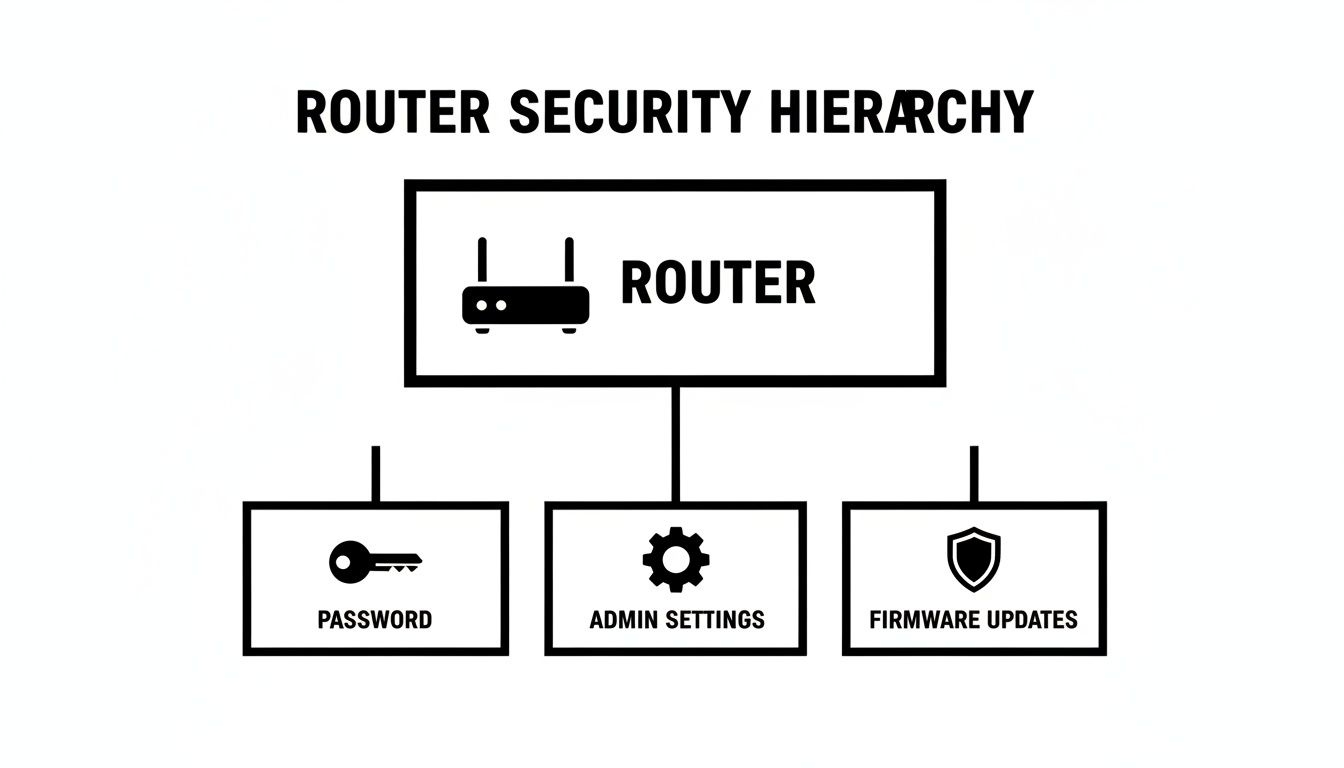
As you can see, a strong password, secure admin settings, and current firmware are the non-negotiable building blocks for a safe network.
Create an Exclusive Club with MAC Address Filtering
Want to take control to the next level? Try MAC address filtering. Every single device that can connect to a network has a unique identifier called a Media Access Control (MAC) address. You can think of it as a device’s permanent, unchangeable fingerprint.
With MAC filtering enabled, you tell your router to only talk to devices on a pre-approved list. You create a "guest list" of sorts with the MAC addresses of your laptop, phone, smart TV, and anything else you own. Any device not on that list gets blocked at the door, even if someone has the correct Wi-Fi password.
Pro Tip: MAC filtering isn't foolproof—a determined hacker can "spoof" or mimic a trusted MAC address. But it’s a fantastic way to stop casual snoops and unauthorized neighbors, adding another valuable layer to your defenses.
You can usually find a device's MAC address in its network settings menu. Once you’ve collected the addresses for all your trusted gear, just pop them into the MAC filtering section of your router’s admin page. For a more detailed walkthrough, you can explore our complete guide on home network security best practices.
Always Keep Your Firmware Updated
Finally, let’s talk about one of the most critical—and most often ignored—pieces of network security: keeping your router's firmware up to date. Firmware is the software that makes your router work, and manufacturers constantly release updates to patch security holes and improve performance.
Hackers are always scanning for routers running old firmware with known weaknesses. When a new vulnerability is discovered, it's a race between you updating your device and an attacker exploiting it. The best thing you can do is turn on automatic updates if your router has that feature. If not, get into the habit of logging into your router once a month to manually check for new firmware. This simple routine slams the door on some of the most common attacks.
Encrypt Your Connection and Cloak Your Activity with a VPN
Your Wi-Fi signal doesn't just stop at your front door. It spills out onto the street, into your neighbor’s living room, and potentially into the laptop of someone looking for an easy target. This reality makes your online activity an open book to snoopers unless you make it unreadable.
This is exactly what encryption does. Think of it as a secret code that scrambles everything you do online—your banking logins, private emails, and browsing history—into complete gibberish. Without the right key, it’s all useless noise. This is the first and most critical line of defense for your network.
Make the Jump to WPA3
For a long time, WPA2 was the standard for securing our Wi-Fi. It did a decent job, but it wasn't perfect, and determined attackers found ways to crack it. The modern gold standard is now WPA3, and for a smart home, it's not just a recommendation; it's essential.
WPA3 brings some serious muscle to the table. It beefs up the cryptographic methods and, more importantly, shuts down the old loopholes that made WPA2 vulnerable. Specifically, it protects against offline "dictionary attacks," where a hacker could grab a snippet of your network traffic and then go hammer away at your password on their own machine until it broke.
Enabling WPA3 is probably the single most powerful security upgrade you can make with just a few clicks. You're making an attacker's job exponentially harder, moving your network's security from "possible to crack" to "not worth the effort."
If your router is a few years old, it might not support WPA3. Honestly, when you're ready to upgrade, make this a deal-breaker. Don't even consider a new router without it.
Why a VPN Is Your Network's Invisibility Cloak
So, WPA3 encrypts the data flying between your phone and your router. But what happens after that? Your traffic then travels through your Internet Service Provider's (ISP) network and across the wild west of the public internet, where it can still be watched. This is where a Virtual Private Network (VPN) becomes your best friend.
A VPN creates a secure, encrypted "tunnel" for all of your internet activity. It routes your data through a private server, effectively hiding what you're doing from anyone trying to eavesdrop—including your own ISP. This means no one can easily see which websites you're visiting or what your smart thermostat is up to.
For a smart home full of connected gadgets, setting up a VPN directly on your router is a game-changer. Forget installing separate apps on every phone, laptop, and smart TV. Configure it once on the router, and every single device that connects to your Wi-Fi is instantly protected.
To really lock things down, pair a VPN with your router’s built-in firewall. A modern firewall can block up to 95% of inbound threats, while a good VPN can stop 80% of eavesdropping attempts. Together, they form a powerful defensive duo. Part of this strategy involves understanding how to hide your IP address, making you a much harder target for anyone trying to pinpoint your digital location.
Proactively Monitoring Your Network for Intruders
Putting up strong defenses is a great start, but it's only half the battle. You also need to keep a close eye on your network to catch trouble before it gets out of hand. Think of it like this: you wouldn't just lock your front door; you'd also peek through the peephole if you heard a strange noise. Active monitoring turns you from a passive Wi-Fi user into the guardian of your digital home.
Don't worry, this doesn't require a degree in cybersecurity. The idea is to simply get a feel for what’s normal on your network. Once you know what should be there, anything out of the ordinary will stick out like a sore thumb.
Regularly Review Your Connected Device List
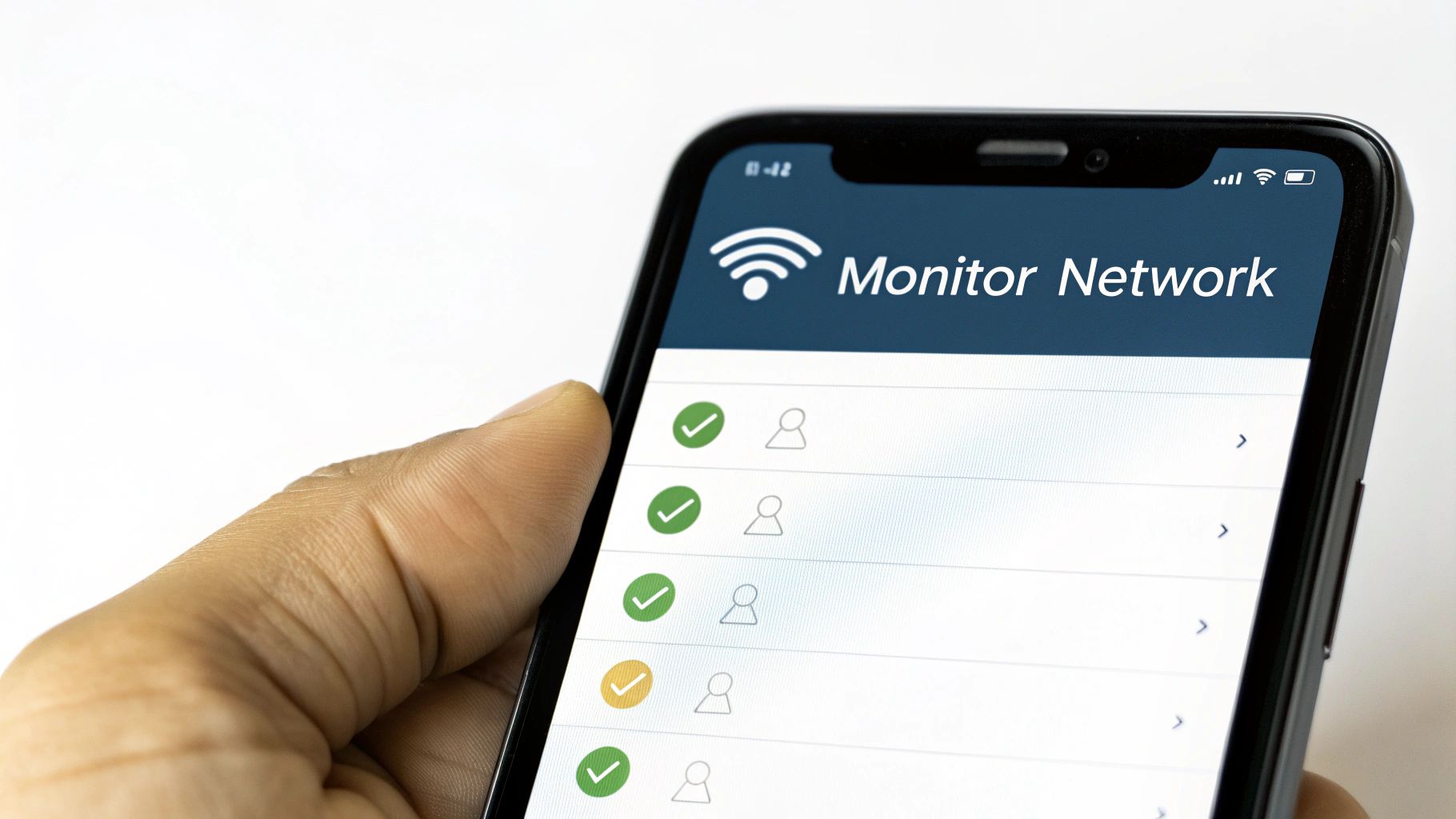
Your router’s administrative dashboard is your network’s command center. One of its most powerful features is a simple list showing every single device connected to your Wi-Fi. I recommend making it a weekly habit to log in and take a quick look.
Keep an eye out for anything that doesn’t ring a bell. See a "Generic Android Device" or an "Unknown PC" that doesn't belong to you or a family member? Every device has a name and a unique MAC address, which helps you identify who’s who.
If you find an uninvited guest:
- Change your Wi-Fi password immediately. This is the fastest way to kick everyone off the network.
- Reconnect your own devices one by one using the new password.
- For an extra security boost, consider enabling MAC address filtering. It creates an exclusive "allow list" for your gear, blocking everything else by default.
Use Apps to Automate Network Scanning
Manually checking your device list is a solid practice, but letting an app do the heavy lifting is even better. There are plenty of user-friendly apps for your phone or computer that can scan your network automatically. They’ll send you an alert the second a new device connects.
This real-time notification is a game-changer. Instead of finding out about an intruder days later during your weekly check, you’ll know within moments. Many of these tools, like Fing, also provide network performance reports and can even spot security vulnerabilities.
Get Familiar with Your Router Logs
If you’re comfortable digging a little deeper, your router's logs are a goldmine of information. They can look pretty cryptic at first, but you don't need to understand every single line. You’re just looking for suspicious patterns.
Zero in on entries that mention authentication failures or repeated login attempts. Seeing hundreds of failed attempts to access your Wi-Fi or router admin page is a huge red flag. It’s a classic sign of a brute-force attack, giving you the proof you need to change your passwords or block the attacker’s MAC address.
Know the Warning Signs
Spotting a problem early is key. Sometimes, the signs of a compromise are subtle, while other times they’re glaringly obvious. Here’s a quick rundown of what to look for and how to react.
| Warning Sign | Potential Threat | Your First Action |
|---|---|---|
| Sudden, severe slowdowns | An unauthorized device is hogging bandwidth, possibly for malicious activity. | Log into your router and check the connected device list immediately. |
| Unrecognized devices in the list | An intruder has cracked your password and gained access to your network. | Change your Wi-Fi password and router admin password right away. |
| Browser redirects or pop-ups | Your router's DNS settings may have been hijacked to send you to malicious sites. | Reset your router to factory settings and reconfigure it from scratch. |
| Repeated login failure alerts | Someone is actively trying to break into your network or router with a brute-force attack. | Change your router admin password and enable login attempt lockouts. |
| You're locked out of your router | An attacker has gained access and changed the admin password to lock you out. | Perform a factory reset on the router to regain control. |
Staying vigilant and knowing how to respond gives you a massive advantage. These simple checks can be the difference between a minor scare and a major security incident.
Monitoring your network isn’t just about catching hackers; it’s about maintaining control. When you know exactly what’s connected at all times, you eliminate the guesswork and can act decisively at the first sign of trouble.
With external threats often targeting Wi-Fi, homeowners need to be proactive. In fact, an in-depth analysis of cybersecurity statistics shows that while 35% of breaches involve insiders, most attacks start from the outside. Using monitoring apps can help you spot intrusions 40% faster than manual checks alone. And for a nearly foolproof defense, enable two-factor authentication (2FA) on your router's admin account—it blocks 99.9% of automated bot attacks.
Building a Human Firewall in Your Household
All the high-tech defenses in the world—strong passwords, guest networks, and encrypted connections—can be completely undone by one simple, careless click. The most overlooked vulnerability in any home network isn’t a piece of hardware; it’s the people using it. That’s why a huge part of protecting your Wi-Fi from hackers is building a "human firewall" by making sure everyone in your home understands today's digital threats.
Cybercriminals are absolute masters of manipulation. They’ve realized it’s often easier to trick you into giving them the keys than to break down the door with a brute-force attack. Their weapon of choice is phishing, a tactic where they use deceptive emails, texts, or social media messages to fool you into handing over sensitive information or downloading malware.
Recognizing Today’s Phishing Attacks
The old-school phishing emails were often a joke—full of typos and weird formatting that screamed "scam." But today's attacks are scarily convincing, especially now that AI can write flawless, persuasive text. An attacker can whip up an email that looks identical to a notification from your smart home device manufacturer.
Picture this: you get an email with the subject, “Security Alert: Your Smart Doorbell is Offline.” It’s got the official logo, the right colors, and the same tone you’re used to. It tells you to click a link to re-authenticate your account immediately to get it back online.
That sense of urgency is a classic trick designed to make you panic and act without thinking. You click the link, and it takes you to a pixel-perfect fake login page. The moment you enter your username and password, the hacker has them. From there, they could potentially access your entire smart home system.
The new wave of cyber threats leverages AI to create incredibly realistic phishing scams. Phishing attacks have surged by 1,265% in the past year, with many of these deceptive emails landing on home networks. Hackers often use unsecured Wi-Fi as a primary entry point to deploy malware, contributing to thousands of confirmed breaches annually.
This is where your human firewall comes in. Beyond just tech, fostering a security-first mindset is critical. You can learn more about the importance of effective security awareness training.
Educating Everyone Under Your Roof
The goal isn't to scare your family but to empower them. Hold a quick, informal family meeting to go over a few simple ground rules for staying safe online. Think of it as a team effort to protect everyone's data and devices.
Try focusing on these key talking points:
- The "Think Before You Click" Rule: This is the big one. Teach everyone to just pause and look at any link before they click, especially if it came in a message they weren't expecting. On a computer, you can just hover your mouse over a link to see its real destination.
- Verify Urgent Requests: Legitimate companies rarely ask for sensitive info out of the blue over email. If a message from your bank, a social media site, or a smart device app asks you to log in, don't use the link they provided. Instead, open a new browser tab and go directly to the official website or use the app on your phone.
- Spotting the Red Flags: Show them what to look for, even in convincing emails. It could be a tiny misspelling in the sender's email address (like
support@netflx.com), a generic greeting like "Dear Customer," or any message that tries to create a sense of panic.
For a deeper dive into safeguarding your entire living space, check out our guide on how to secure your home, which covers both digital and physical security measures.
Creating a Simple Incident Response Plan
Even with the best training, mistakes happen. It’s crucial that everyone in the house knows exactly what to do if they think they've clicked on something bad or given information to a scammer. The last thing you want is for someone to hide a mistake because they're afraid of getting in trouble.
Keep your family's response plan simple and straightforward:
- Disconnect Immediately: If a device might be compromised, get it off the Wi-Fi right away. This can stop malware from spreading to other devices on your network.
- Report It: Make it clear that everyone should tell you (or another designated adult) immediately. There's no shame in being tricked; acting fast is what really matters.
- Change Passwords: If any login details were entered on a shady site, that password needs to be changed everywhere it's used. Start with the most important accounts, like email and banking.
- Scan for Malware: Run a full scan with a reputable antivirus program on the device that was affected.
By creating an environment of open communication and shared responsibility, you turn every family member into an active defender of your home's security. This human firewall is often the strongest layer of protection you can have.
Your WiFi Security Questions Answered
Even when you think you've got your network locked down, questions inevitably pop up. Home network security can feel like a tangled mess of tech jargon and conflicting advice. I want to cut through that noise and give you some straight, clear answers to the questions I hear all the time.
Think of this as a quick chat with a tech-savvy friend. It's here to help you solve specific worries, bust some common myths, and feel more confident about the protections you've put in place.
How Often Should I Change My WiFi Password?
This is the big one, and the answer has changed a lot over the years. We used to be told to change our passwords every 60 or 90 days like clockwork. That advice is now officially outdated. The modern, more effective approach focuses on strength over frequency.
If you've taken the time to create a truly strong and unique passphrase—I'm talking something over 15 characters with a mix of letters, numbers, and symbols—you can ditch the recurring calendar reminder. A long, random passphrase is a nightmare for attackers to crack.
Instead of a rigid schedule, it's better to change your password based on specific events. You should change it immediately if:
- You have any reason to suspect your network has been compromised.
- You've shared the password with a guest who no longer needs access (like a house-sitter or contractor).
- Your router's manufacturer announces a major security flaw.
- You're selling or giving away a device that was once connected to your network.
Bottom line: Pour your energy into creating one fantastic password and keeping an eye on your network, rather than constantly cycling through weaker ones.
Is Hiding My WiFi Network Name a Good Idea?
Hiding your network name (your SSID) seems like a sneaky and smart security move. The thinking goes, "If they can't see it, they can't attack it." Unfortunately, this is what we in the field call "security through obscurity," and it provides almost no real protection.
Sure, hiding your SSID will keep it from showing up in the list of available networks on your neighbor's laptop. But it does absolutely nothing to stop a motivated attacker. Hackers have basic scanning tools that can sniff out hidden networks in seconds. It’s the digital equivalent of hiding your front door behind a thin curtain—it might fool a casual glance, but anyone who's actually looking will find it instantly.
In fact, hiding your SSID can sometimes create headaches for you. Your own devices might have trouble finding and reconnecting to the network automatically, leading to frustrating connection drops. Your time is much better spent on things that actually work, like enabling WPA3 encryption and using that super-strong password we just talked about.
Do Security Measures Slow Down My Internet?
It’s a fair question—no one wants to sacrifice speed for security. The good news is that nearly all the security practices we've covered will have zero noticeable impact on your internet performance.
Modern routers are powerful little computers. Their processors are built to handle strong encryption like WPA3 without even breaking a sweat. Things like enabling a guest network, using MAC filtering, or setting a long password don't add any meaningful processing load that would cause buffering or lag.
The only security tool that can affect speed is a VPN. Because a VPN encrypts and reroutes all your traffic through a separate server, a small speed reduction is part of the deal. With a high-quality VPN service, though, this performance hit is usually minimal, often just 10-20%. For most of what you do online—streaming HD video, browsing, even gaming—you'll likely never notice the difference. The huge boost in security and privacy is well worth that tiny trade-off.
At Automated Home Guide, our goal is to help you build a smarter, more secure home. For more expert tips and honest reviews on the latest in smart home security, come visit us at https://automatedhomeguide.com.





Leave a Reply