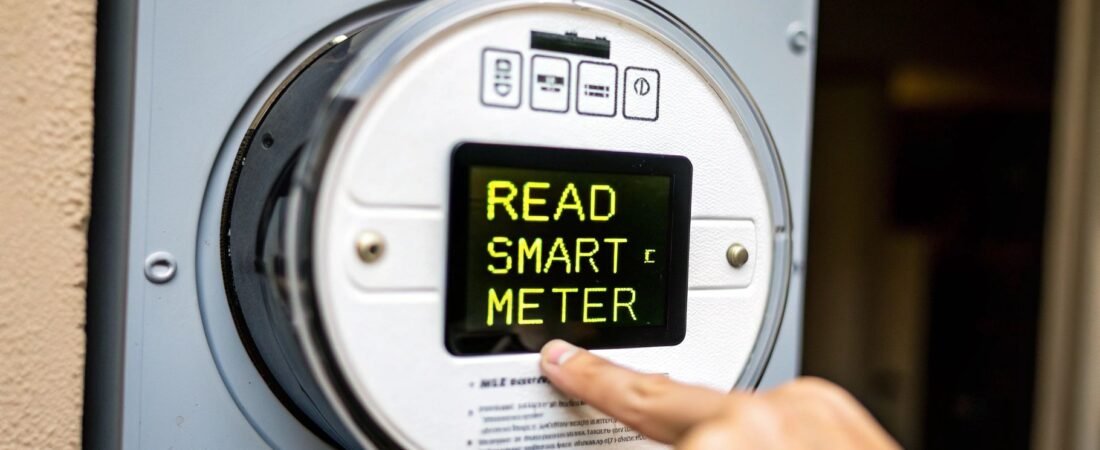
When you walk up to your smart meter, your main goal is to find one specific number: your total energy usage. For electricity, this will be in kilowatt-hours (kWh). For gas, you'll be looking for cubic meters (m³). That's it. Whether your meter's screen is static or cycles through a bunch of different displays, finding that one figure is your starting point for truly understanding how much energy you're using.
Your Quick Guide to Reading a Smart Meter
Let's cut through the clutter. You don't need a degree in engineering to read your smart meter. The number one thing you're looking for is the same figure your utility company uses to create your bill. Knowing how to find it yourself means you can double-check their work, spot trends, and start taking real control over your energy costs.
The shift to smart meters is a global one for a reason. By 2030, experts predict they'll be in over 3 billion homes and businesses, a huge jump from the 1.8 billion installed by the end of 2024. For you, this tech means no more estimated bills and a much clearer picture of what you're being charged for, since the meter sends your actual usage data automatically.
Finding Your Core Reading
The most important screen on your meter is the one showing the cumulative energy reading. Think of it as the odometer on your car—it’s the running total of all the energy your home has consumed since day one.
- For electricity: Keep an eye out for a number followed by kWh. That’s the universal unit for electrical energy.
- For gas: The number will likely be followed by m³, which stands for cubic meters, measuring the volume of gas you've used.
If your meter's display cycles through different screens on its own, just be patient and wait for the one labeled kWh or m³ to pop up. Some meters have a button you'll need to press to move through the displays yourself. For now, you can ignore all the other data like tariff rates or network info—just focus on that main usage number. Once you have this, you have the key to making your home energy efficient.
The real value in knowing how to read smart meter displays isn't just about sending a number to your supplier. It's about connecting your daily activities—like running the dishwasher or charging your EV—to the numbers you see, giving you direct insight into your consumption habits.
Decoding the Display Screens
Many smart meters cycle through various codes and readings, which can feel a bit confusing at first. This is just the meter showing you different types of information, from your current usage to tariff details. Knowing what the common labels mean can help you quickly find what you're looking for.
Below is a quick reference table to help you make sense of the most common display codes you might see.
| Common Smart Meter Display Codes and Their Meanings | ||
|---|---|---|
| Display Code/Label | What It Means | What to Look For |
| 01, 02 (or R1, R2) | Time-of-Use Registers | These show your usage during different tariff periods (e.g., peak, off-peak). Essential if you're on a time-of-use plan. |
| 00 or TOTAL | Total Cumulative Reading | This is the primary reading you need—the total kWh or m³ used since installation. |
| IMP or IMPORT | Imported Energy | The amount of energy you've "imported" or pulled from the grid. This is your standard consumption reading. |
| EXP or EXPORT | Exported Energy | If you have solar panels, this shows how much excess energy you've sent back to the grid. |
| DATE/TIME | Current Date and Time | A simple display showing the meter's internal clock is correct, which is important for accurate time-of-use billing. |
Don't feel like you need to memorize this table. The key is to simply recognize that your meter is showing you more than one piece of data. Your main target is almost always the TOTAL or IMP reading in kWh or m³.
Getting to Know Your Smart Meter’s Display and Buttons
Staring at that little digital box on the wall and feeling a bit overwhelmed? It's a common feeling. Let's walk through how to make sense of the screen, the buttons, and those mysterious blinking lights.
Most smart meters keep it simple with an LCD screen and just one or two buttons. If the screen is dark, don't worry—it’s probably just asleep. A quick press of any button should wake it right up. Some displays cycle through different numbers on their own; you can either be patient and wait for the one you need, or you can press the button to skip ahead to it manually.
What You're Seeing on the Screen
When you first look at the display, you're seeing a lot more than just your energy use. Keep an eye out for labels like "IMP" or "IMPORT". This just refers to the electricity you're pulling in from the grid, which is almost always the main reading you'll need.
What about that flashing red light? I get this question a lot. A fast-blinking light isn't a warning sign. It’s simply showing your real-time electricity consumption—the faster it blinks, the more power you’re using at that very moment.
The key is not to get bogged down by all the different screens and flashing lights. Your main goal is to find the number measured in kilowatt-hours (kWh). Most of the other data is for technicians or relates to specific tariffs you might not even be on.
This quick visual guide breaks down the whole process into three simple steps.
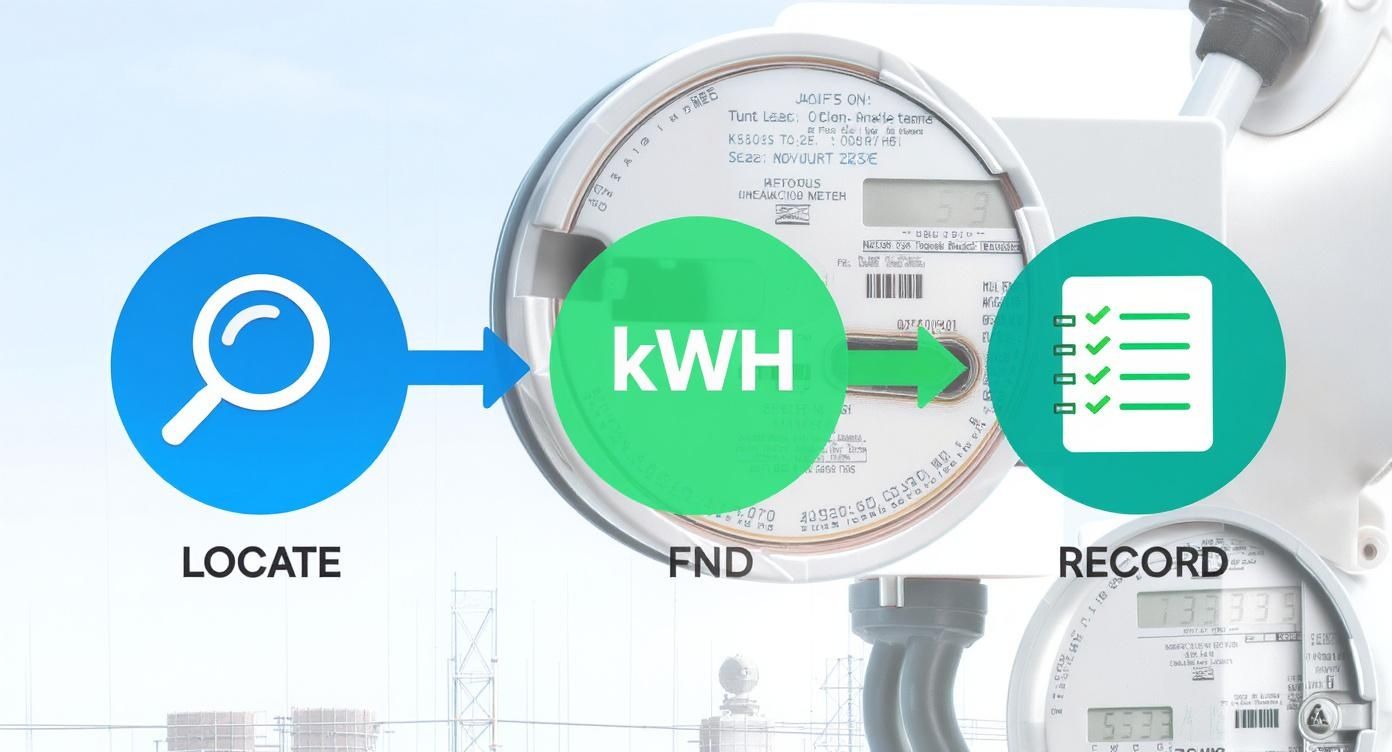
As you can see, it really just comes down to finding your meter, knowing which number to look for (the kWh reading), and jotting it down.
Why Is There So Much Information Anyway?
This ability to show so many different readings is thanks to the technology inside, often called advanced metering infrastructure (AMI). It’s what creates a two-way conversation between your meter and your utility company, letting them gather detailed usage data without ever sending someone to your house.
For you, this is a good thing! It means you can see exactly when you’re using the most energy. This kind of insight is incredibly powerful if you're trying to cut back and save some money. As people become more familiar with these displays, they're finding it easier than ever to lower their bills. If you're interested in the bigger picture, you can learn more about the global smart meter market trends.
Reading Different Types of Smart Meters
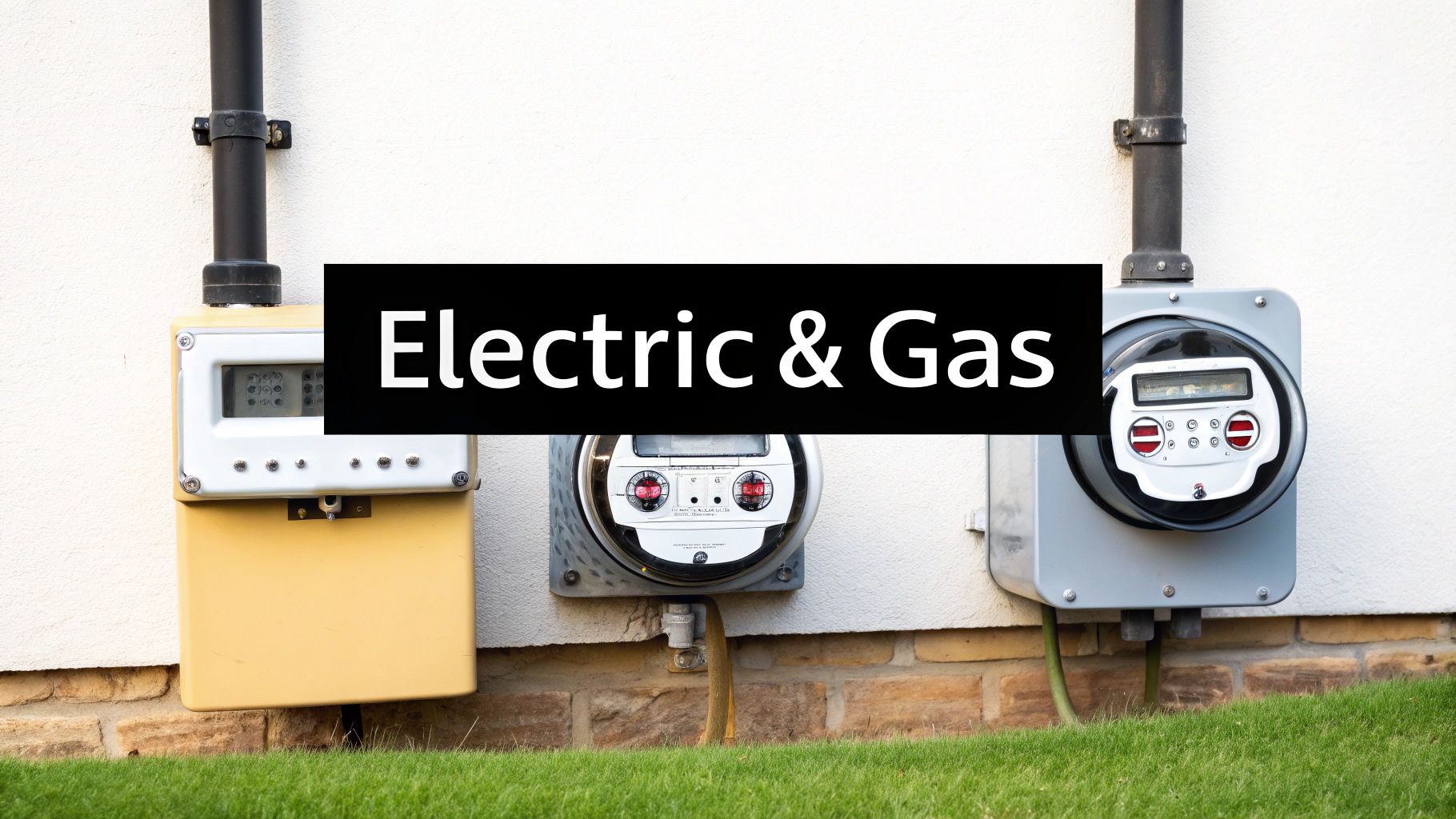
Smart meters aren't all cut from the same cloth, and figuring out your specific model is the key to getting an accurate reading. While they all track your energy use, the exact sequence of button presses can be a bit of a puzzle. Let's walk through how to find what you need on both your electricity and gas meters.
Finding Your Electricity Reading
First things first, your electricity usage is always measured in kilowatt-hours, which you’ll see abbreviated as kWh. On most meters, the main display cycles through different information, so you'll probably need to press a button to land on the right screen.
A lot of the common models out there, like those from Secure™, have a keypad. On these, try pressing the number 6 repeatedly. This should cycle you through the options. You’re looking for a screen that shows "IMP R01," which stands for your primary import reading. A moment later, a long number followed by "kWh" will pop up—that’s your total usage.
A quick tip from experience: always ignore the numbers after the decimal point. If your meter screen says 0014582.7 kWh, the reading you need to give your supplier is just 14582. Dropping that last digit gives them the correct whole number.
What if you're on a multi-rate tariff like Economy 7, with different prices for day and night? No problem. The process is almost identical.
- For your day rate reading (peak): Press 6 until you see "IMP R01" on the screen.
- For your night rate reading (off-peak): Keep pressing 6 until the display shows "IMP R02".
Knowing how to find both rates is a game-changer. It helps you confirm your bill is correct and figure out the cheapest times to run things like your dishwasher or washing machine. If you're keen on finding more ways to cut down on costs, you might want to look into these devices to reduce your electricity bill.
How to Read Your Gas Smart Meter
Thankfully, reading a gas smart meter is usually much simpler. Here, the goal is to find the volume of gas you've used, which is measured in cubic meters (m³).
With most gas meters, a single press of the main button will wake up the display and show the reading right away. If you have a keypad, pressing 9 is typically the magic number. This should bring up a screen showing "VOLUME," followed by your reading ending in m³.
So, if you see 00543.21 m³, your official reading is 543. Your energy supplier takes this volume and converts it into kilowatt-hours on your bill. While most homes use a standard meter, it can be interesting to see the technology used in other contexts, like a three-phase energy meter with an LCD display for more complex electrical systems.
Turning Meter Readings Into Real Savings
https://www.youtube.com/embed/UbjBQHMrYSA
So, you've figured out how to read your smart meter display and you have the numbers. What now? The real magic isn't in just knowing the data; it's about turning those kilowatt-hours into actual savings you can see on your bill.
Think of your energy usage as a story your home tells you every day. If you see a sudden spike of 5 kWh on a Tuesday, ask yourself what happened that day. Did you run the dishwasher, do a couple of loads of laundry, and bake a casserole for dinner? Making that connection is the first step. Understanding how kilowatt-hours impact your energy costs is what gives you the power to really make a change.
Using Your Utility Portal
Your energy company almost certainly has an online portal or a mobile app, and this is where your smart meter's data really shines. It takes those raw numbers and turns them into user-friendly charts and graphs. No more guesswork—you can see your energy habits laid out in plain sight.
These tools are incredibly handy for a few key things:
- Spotting Trends: You can pinpoint the exact times of day or days of the week when your energy use is highest.
- Finding Energy Hogs: That consistent spike every afternoon? It might just be your old, inefficient air conditioner kicking on.
- Tracking Your Progress: As you start making changes, you can actually watch your consumption drop. It’s pretty satisfying.
Your utility's portal is your best friend when it comes to saving money. It does all the hard work of crunching the numbers, showing you where every dollar is going and revealing the best places to cut back.
The great thing about modern smart meters is how they work with these digital tools. You're not just reading numbers off a box; you're seeing your home's energy consumption in kWh and getting actionable insights.
If you're ready to get serious about finding the biggest energy drains, a good next step is to run through a detailed home energy audit checklist.
What to Do When Your Smart Meter Acts Up
Even the smartest tech has its off days, and your smart meter is no different. It can be frustrating to see a blank screen or a weird error code pop up, but don't panic. More often than not, the fix is something you can handle yourself without having to call for backup.
Let's walk through some common glitches and how to deal with them safely.
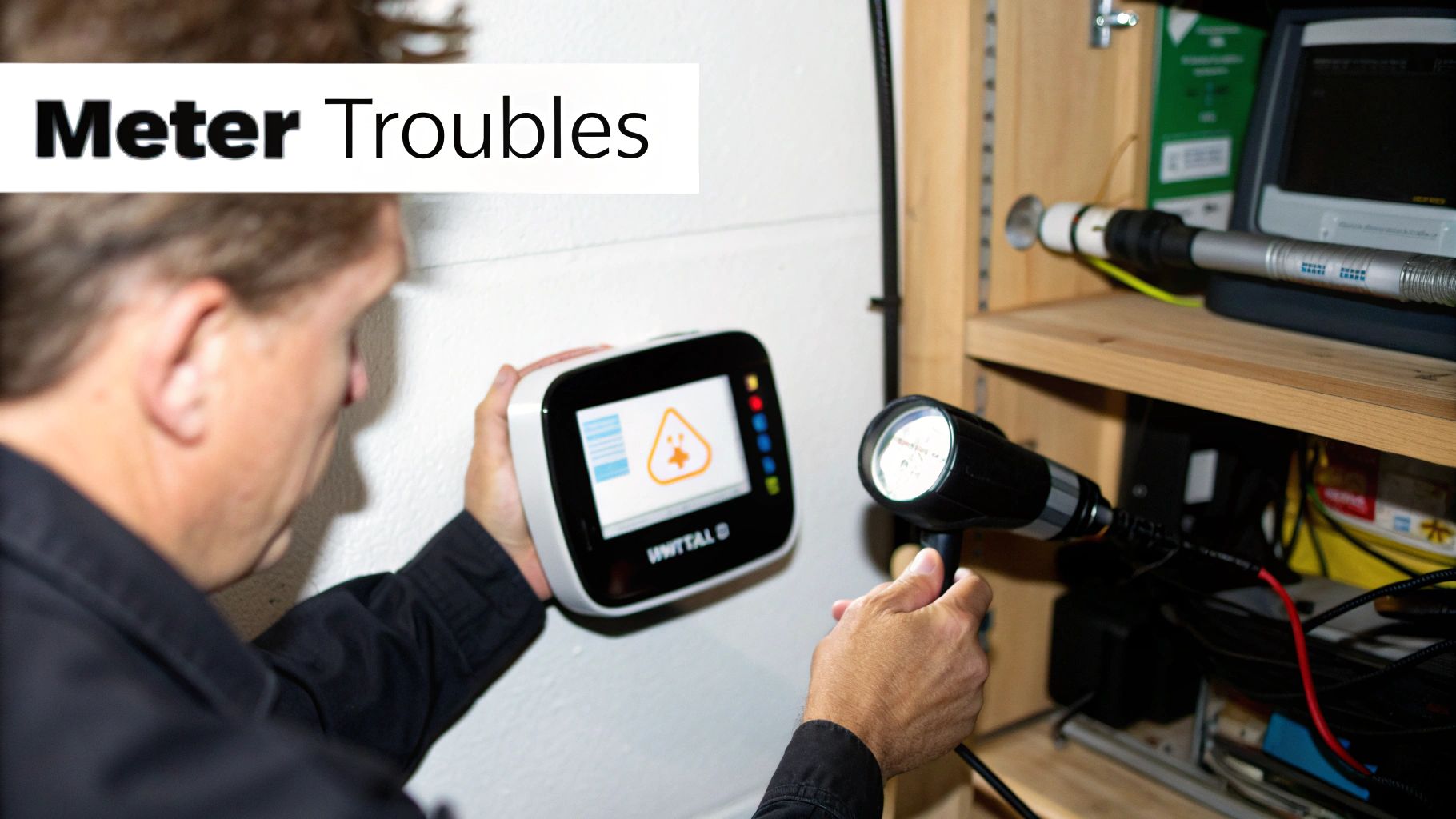
If your meter's display is completely blank, the first thing to try is simply pressing the main button to wake it from sleep mode. If that doesn't work, it might just be a temporary power issue. Give it a few minutes before trying again.
Still nothing? Or maybe the readings you're seeing seem way off from your usual energy use? That's your cue to get in touch with your utility provider. They can run diagnostics on their end and figure out if a technician needs to come out.
Making Sense of Error Messages
Every now and then, your meter might flash an error code or message. These can look cryptic, but they usually point to a specific issue, often related to communication. For example, if you see a "WAN" or "HAN" error, it’s a good sign that the meter is having trouble connecting to the network or your in-home display.
Before you pick up the phone, here are a few things you can check yourself:
- Look for Blockages: Is your meter located near any large metal objects, like a filing cabinet or a fridge? Things like that can sometimes interfere with the signal, so make sure the area around it is clear.
- Restart Your In-Home Display (IHD): The classic "turn it off and on again" works wonders. Unplug your IHD, leave it for about a minute, then plug it back in. This simple reboot often gets it talking to the meter again.
- Jot Down the Code: Make sure you write down the exact error code or message you see on the screen. Having this specific information is incredibly helpful when you talk to your supplier's support team.
One thing to remember: never try to open the meter's casing or mess with the wiring yourself. For anything more complicated than a quick IHD reboot, your energy supplier is the only one who should be looking into it. They have the right tools to solve the problem safely.
Got Questions About Your Smart Meter? We've Got Answers.
Let's clear up some of the common questions that pop up once a smart meter is installed. Knowing the ins and outs will help you get the most out of it.
Do I Still Need to Send Meter Readings?
One of the best things about smart meters is that they automatically send your energy usage to your supplier. This means, for the most part, you can say goodbye to manually submitting readings. Your bills will finally reflect what you actually use, not just an estimate.
But what happens if the tech has a hiccup? A temporary network issue could prevent the meter from phoning home. In those rare situations, knowing how to take a reading yourself is a great fallback. It keeps you in control and ensures your bills stay accurate.
How Can I Tell If My Smart Meter Is Working?
A quick visual check is usually all you need. If the meter's screen is on and displaying information, that's a good sign. You should also spot a small light (it's often red) that flashes. This is the pulse light, and it blinks to show that electricity is being used.
The faster that light flashes, the more power your home is drawing at that exact moment. It’s a handy real-time indicator.
If your bills suddenly spike or drop without any change in your habits, it's worth a closer look. While smart meters are very reliable, it's always smart to query any strange billing changes with your energy supplier.
Quick clarification: Many people mix up the meter and the small screen in their kitchen. They are two different things.
- The smart meter is the official device, often in a box outside or a cupboard, that measures and records your energy use for billing.
- The in-home display (IHD) is the small, portable screen that sits on your counter. It connects wirelessly to the meter to give you a convenient, real-time look at your usage.
At Automated Home Guide, our goal is to make home technology simple. For more practical advice and detailed tutorials, check out our other guides at https://automatedhomeguide.com.


Leave a Reply