Your Roadmap To The Perfect Router
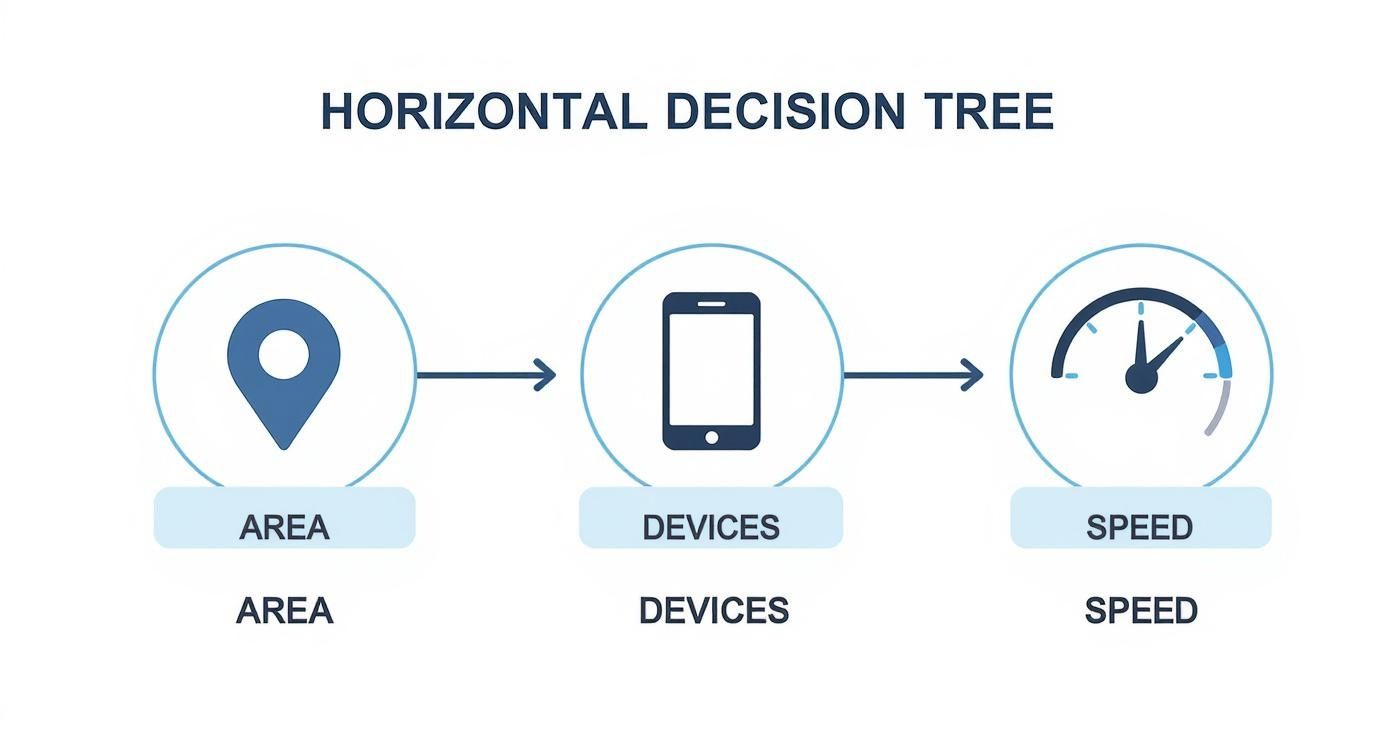
Sorting through endless model numbers and tech specs can feel like decoding a secret language. A solo gamer in a 600-square-foot apartment has very different needs than a family of five spread across multiple levels, each juggling smart devices. By zeroing in on your home’s footprint, connected gadgets, internet plan speed, and security requirements first, you’ll steer clear of both dead-zone headaches and overspending on features you’ll never use.
Quick Router Needs Assessment
Use this table to quickly identify your user profile and the key router features you should prioritize based on your home size and online activities.
| User Profile | Home Size | Primary Activities | Recommended Router Type |
|---|---|---|---|
| Light User | Up to 800 sq ft | Browsing, email, HD streaming on 1–2 devices | Dual-band Wi-Fi 5/6 router |
| Balanced User | 800–2,000 sq ft | Remote work, video calls, streaming on 3–5 devices | Mid-range Wi-Fi 6 router |
| Power User | Above 2,000 sq ft | 4K streaming, online gaming, heavy smart home automation | Wi-Fi 6E/7 mesh system |
Once you know where you fit, the next step is to drill into specific features—things like antenna configuration, port selection, and firmware support—to find the perfect match.
Understanding Your User Profile
Real-world example: My friend Mia needs just enough coverage to support her laptop, phone, and a smart speaker in a one-bedroom condo. Meanwhile, the Thompson household streams 4K on multiple TVs, runs dozens of Wi-Fi lights, and even hosts virtual game nights. Those differences matter.
• Light Users
• Fewer than 10 devices
• Main tasks: web browsing, email, HD video on one or two screens
• Ideal pick: a basic dual-band Wi-Fi 5 or Wi-Fi 6 router
• Balanced Users
• Around 10–20 devices
• Juggle remote work calls, streaming, light gaming
• Sweet spot: a mid-range Wi-Fi 6 model with decent QoS
• Power Users
• 20+ devices across multiple floors
• Simultaneous 4K streams, competitive gaming, full smart-home setups
• Go for a Wi-Fi 6E or upcoming Wi-Fi 7 mesh solution
Your router is the digital heart of your home. Choose wisely to keep every device happy, every time you connect.
Aligning Needs With Router Features
Once you’ve nailed your user profile, match it to the features that really matter:
- Quality of Service (QoS): Prioritize gaming or video calls so lag doesn’t ruin your session.
- MU-MIMO & OFDMA: Essential for handling dozens of gadgets without bogging down the network.
- Antenna Count and Placement: More isn’t always better, but the right layout boosts coverage in tricky spots.
- Mesh Versus Single Router: A mesh kit fills large or oddly shaped homes; a single high-power unit works for smaller footprints.
- Security Protocols: WPA3, guest networks, and automatic firmware updates keep intruders out.
Industry reports put the global router market at $15.48 billion in 2021, climbing to $21.54 billion by 2025. That surge reflects our growing reliance on remote work and connected devices—proof positive that picking the right router isn’t a luxury, it’s essential.
Breaking Down the Tech Specs
Walking down the router aisle can feel like you need a translator. With terms like "AX6000," "MU-MIMO," and "tri-band" plastered all over the boxes, it's easy to get lost in the jargon. But once you understand what these specs actually mean for your day-to-day internet use, you can confidently pick a router that delivers the performance you need without paying for features you'll never touch.
The first thing you’ll notice is the Wi‑Fi standard—usually listed as Wi‑Fi 5, Wi‑Fi 6, or the brand new Wi‑Fi 7. Think of these numbers as generations. Each new generation is a significant leap forward, designed to handle more devices, deliver faster speeds, and reduce congestion. It's the difference between a single-lane country road and a multi-lane superhighway.
If your network is struggling, understanding these specifications is the first step in figuring out how to improve your internet speed.
Understanding Wi-Fi Standards
The wireless router market is exploding, projected to hit $16.62 billion by 2025 as our homes get smarter and our data needs grow. While Wi‑Fi 5 still has a massive 42.19% of the market thanks to its rock-solid performance and affordable price, the momentum is shifting.
Newer standards are gaining ground fast. Wi‑Fi 7, for instance, is poised to be a game-changer, with experts projecting its shipments to grow by 25.51% each year through 2030. Why? Because it’s built for the future, capable of delivering mind-boggling real-world speeds between 6-15 Gbps for things like 8K streaming and immersive AR/VR experiences.
Here's what this means for you in practical terms:
- Wi-Fi 5 (802.11ac): This has been the workhorse standard for years. It’s perfectly fine for smaller households (under 15 devices) that stick to web browsing, HD video, and email.
- Wi-Fi 6 (802.11ax): This is the sweet spot for most modern homes. It was specifically designed to juggle dozens of connected devices at once, from laptops and phones to smart lights and thermostats. It dramatically cuts down on lag and buffering.
- Wi-Fi 6E: Think of this as Wi‑Fi 6 with an exclusive, private highway. It adds access to the brand-new 6 GHz band, a clean, uncongested space for your newest, fastest devices.
- Wi-Fi 7 (802.11be): This is the cutting edge. Its standout feature, Multi-Link Operation (MLO), lets your devices use multiple Wi-Fi bands simultaneously for insane speeds and reliability. It’s overkill for most but essential for tech enthusiasts and anyone diving into cloud gaming or virtual reality.
To make it even clearer, this table breaks down the essentials of each standard.
Wi-Fi Standards at a Glance
A clear comparison of the most common Wi-Fi standards to help you decide which one best fits your needs and budget.
| Wi-Fi Standard | Maximum Speed | Key Feature | Best For |
|---|---|---|---|
| Wi-Fi 5 (802.11ac) | 3.5 Gbps | Mainstream adoption | Basic web browsing, HD streaming, homes with fewer than 15 devices. |
| Wi-Fi 6 (802.11ax) | 9.6 Gbps | OFDMA & MU-MIMO | Smart homes with many devices, 4K streaming, online gaming. |
| Wi-Fi 6E | 9.6 Gbps | Access to 6 GHz band | Tech-savvy users with new devices, reducing interference in crowded areas. |
| Wi-Fi 7 (802.11be) | 46 Gbps | Multi-Link Operation (MLO) | Next-gen applications like AR/VR, 8K streaming, and serious cloud gaming. |
Choosing the right standard is a balancing act between your current needs, your budget, and how ready you want to be for the future.
My Takeaway: For the vast majority of people, a Wi-Fi 6 router is the smartest choice right now. It offers a huge performance boost over Wi-Fi 5 and will keep your network running smoothly for years. But if you live on the cutting edge, investing in Wi-Fi 6E or Wi-Fi 7 will pay off.
Bands And Throughput Explained
You'll also see terms like "dual-band" or "tri-band" and a big number like "AX6000." These specs are all about how the router manages traffic.
Think of Wi-Fi bands as different highways for your data.
A dual-band router gives you two highways:
- The 2.4 GHz band: Slower speeds, but its signals travel further and punch through walls more effectively.
- The 5 GHz band: Much faster speeds, but with a shorter range.
This is great because you can put your most important devices, like a gaming PC or streaming box, on the fast 5 GHz highway, while your less-critical smart plugs and thermostats can use the 2.4 GHz road.
A tri-band router adds a third highway—either a second 5 GHz band or, with Wi-Fi 6E, the new 6 GHz band. This extra capacity is a lifesaver in homes packed with high-demand devices, ensuring that one person's 4K movie stream doesn't slow down someone else's video call.
That big number on the box (like AX6000) is the router's total theoretical speed across all its bands combined. You won't get that speed on a single phone, but a bigger number means the router has more overall capacity to handle lots of devices without breaking a sweat.
Core Technologies That Matter
Finally, let's talk about two crucial technologies that make modern routers so much smarter: MU-MIMO and OFDMA.
Imagine your router is a delivery truck. In the old days, that truck could only visit one house (your device) at a time, dropping off one package before moving to the next. It was slow and inefficient.
- MU-MIMO (Multi-User, Multiple Input, Multiple Output) lets the truck deliver packages to a few different houses at the very same time.
- OFDMA (Orthogonal Frequency Division Multiple Access), a key upgrade in Wi-Fi 6, is even smarter. It allows the truck to be loaded with packages for several different houses and drop them all off in one highly efficient trip.
This is why a Wi-Fi 6 router feels so much faster and more responsive in a busy home, even if your internet plan's speed hasn't changed. It’s not just about being fast; it's about being incredibly efficient at managing data.
Comparing Mesh And Standalone Routers
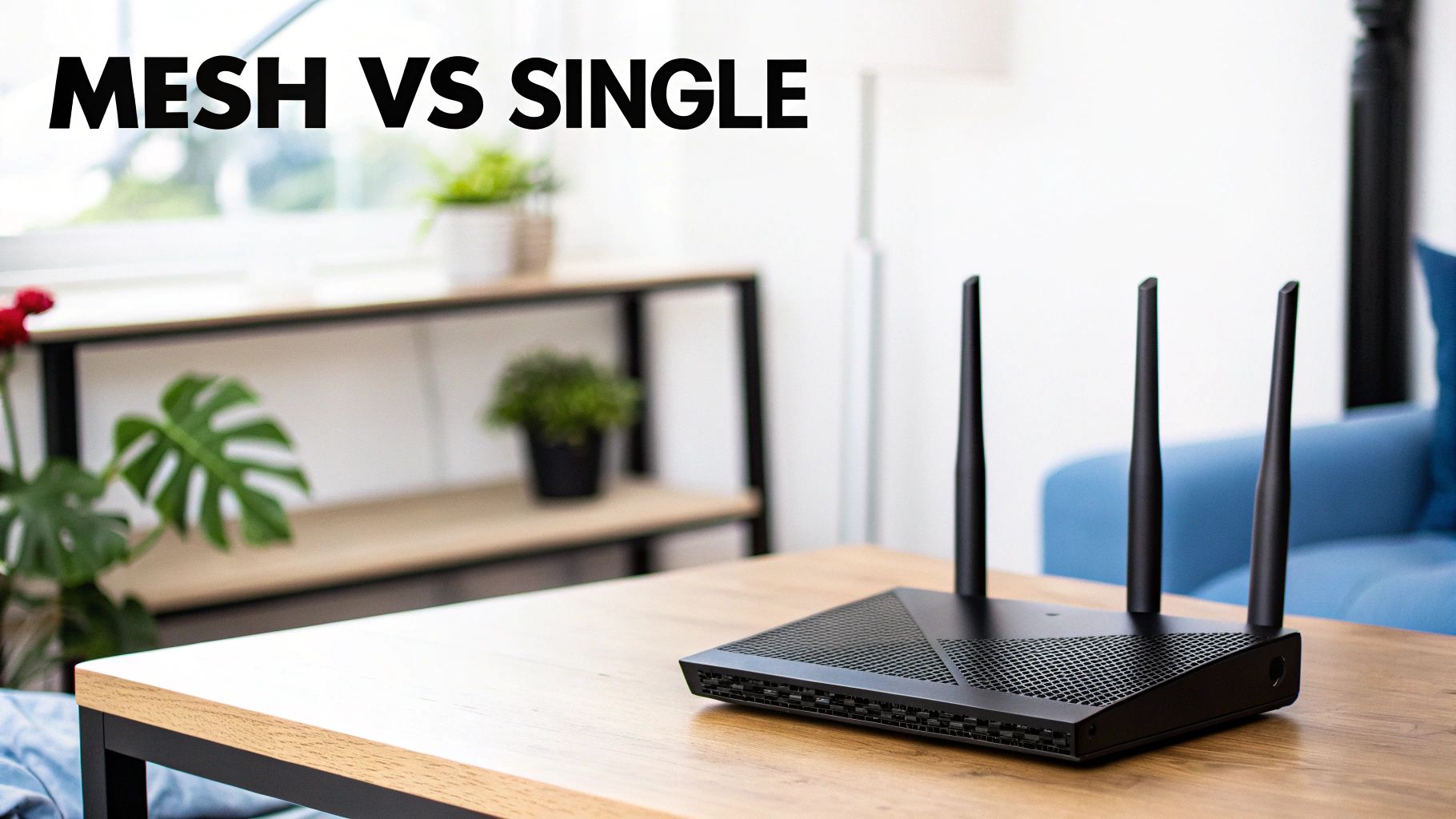
One of the biggest decisions you'll make when upgrading your home network comes down to a single question: do you need one powerful, centralized router, or a team of smaller devices working together in a mesh system? There’s no single right answer—it all depends on your home’s size, layout, and even the materials used in its construction.
Let's break down the two main approaches so you can figure out what’s right for your setup.
The Case For a Standalone Router
For years, the standalone router was the only game in town. It’s that familiar all-in-one box that plugs into your modem and broadcasts a Wi-Fi signal from a single point. And honestly, for a lot of people, it's still the perfect fit.
If you're in an apartment or a smaller, single-story home—think anything under 1,500 square feet—a good quality standalone router is often the most sensible and budget-friendly choice. It’s like placing a powerful lightbulb in the middle of a small room; it can easily illuminate every corner.
A single router works best in these situations:
- Small Homes & Apartments: With less ground to cover and fewer walls for the signal to fight through, one device can handle the job just fine.
- Open-Concept Layouts: Fewer obstructions mean the Wi-Fi signal travels more freely, keeping its strength.
- Budget-Friendly Setups: You can often get a high-performance single router for less than the cost of a basic mesh kit.
The obvious downside? Range. That Wi-Fi signal gets weaker the further you get from the router. Thick plaster walls, brick fireplaces, and even large metal appliances can stop a signal in its tracks, creating those frustrating dead zones.
When a Mesh System Is The Clear Winner
This is where mesh systems come in. If your home is larger, spread across multiple floors, or has a weird, rambling layout, a mesh network is practically a necessity for consistent coverage. It’s specifically designed to kill Wi-Fi dead zones for good.
A mesh Wi-Fi system uses a main router connected to your modem, plus a series of satellite "nodes" you place around your house. These nodes communicate with each other, blanketing your entire home in a single, seamless Wi-Fi network.
I saw this firsthand with a friend who turned his basement into a home office. His powerful standalone router was on the main floor, and the signal in the basement was flaky at best. The Wi-Fi on his back patio was nonexistent. After swapping it for a three-node mesh system—one by the modem, one in the basement, and one near the back door—he suddenly had perfect, full-speed Wi-Fi everywhere.
Mesh Wi-Fi isn't about one device shouting loudly. It's about multiple devices having a coordinated conversation to ensure no corner of your home gets left out.
If dead zones are your main problem, our guide on how to extend your Wi-Fi range has some other useful strategies you can explore.
Head-To-Head Comparison
To make the choice crystal clear, here’s a quick rundown of how they stack up against each other.
| Feature | Standalone Router | Mesh System |
|---|---|---|
| Best For | Apartments, small homes (<1,500 sq ft), open layouts. | Large homes (>2,000 sq ft), multi-story houses, complex layouts. |
| Coverage | Centralized signal that weakens with distance and obstructions. | Distributed coverage that eliminates dead zones with multiple nodes. |
| Setup | Usually very straightforward; you only have to configure one device. | A bit more involved; requires placing and syncing multiple nodes. |
| Cost | Generally a lower upfront cost for a single, powerful unit. | A higher initial investment for a starter kit with multiple nodes. |
| Expandability | Limited. You can add extenders, but they often create separate, clunky networks. | Simple to expand. Just add another node to the system to grow your coverage. |
In the end, it really is about matching the tech to your living space. A powerful single router is an excellent, cost-effective tool for smaller homes. But for a larger house with a tricky layout, a mesh system is the definitive way to get reliable, whole-home coverage.
Digging Into Advanced Router Features
Once you've sorted out the core specs like Wi-Fi standards and speed, it's time to look at the features that really separate a basic router from a true network powerhouse. These are the tools that give you fine-tuned control over your network's performance, security, and who can access what. Honestly, figuring out if you actually need these extras is the key to deciding whether that premium price tag is justified or just clever marketing.
It's this demand for more than just a simple internet connection that's fueling the home router market's growth, which is expected to jump by $3.34 billion between 2025 and 2029. People want smarter, more secure networks. You can read more about this trend over at PR Newswire.
Prioritizing Your Traffic With Quality of Service
Ever been on a critical video call only to have your screen freeze the moment someone else starts streaming a 4K movie? That’s a classic bandwidth battle, and it's exactly what Quality of Service (QoS) is built to fix. Think of it as an intelligent traffic manager for your home internet.
Instead of a free-for-all where every device gets the same priority, QoS lets you tell your router what's most important. You can give your work laptop or your PS5 first dibs on the internet connection, ensuring your most important activities stay smooth and responsive, no matter what else is happening.
- For Gaming: Prioritize your console or PC to crush lag and keep your ping low in competitive matches.
- For Work: Give your laptop top priority so your Zoom and Teams calls are always crystal-clear.
- For Streaming: Make sure your smart TV gets the bandwidth it needs to avoid that dreaded buffering wheel on movie night.
Most modern routers have some form of QoS, but how it works can vary a lot. Some offer simple, one-click presets for common uses, while others give you granular controls to tweak every last setting yourself.
Pro Tip: When you set up QoS, focus on prioritizing applications that need low latency (like video calls and online gaming) over things that just need high bandwidth (like big file downloads). You'll notice a much bigger improvement in how responsive your network feels.
Essential Security Features You Shouldn't Ignore
Your router is the front door to your entire digital life, so its security features are absolutely non-negotiable. With cyber threats getting more sophisticated all the time, a router with weak or outdated protection is a huge liability. You should be looking for a model that offers security in layers.
The first line of defense is encryption. WPA3 is the current gold standard, offering far more robust protection against password-cracking attacks than the older WPA2. If a router doesn't support WPA3, I’d seriously consider passing on it.
Beyond basic encryption, a few other tools are critical for a secure setup:
- Built-in Firewall: This is your network's gatekeeper. It stands between your devices and the wider internet, blocking malicious traffic and unauthorized access attempts.
- Automatic Firmware Updates: This one is huge. Manufacturers constantly release updates to patch security holes. A router that updates itself automatically means you’re always protected without having to remember to do it yourself.
- Guest Network: An absolute must-have. This feature creates a separate, isolated Wi-Fi network for visitors. They get internet access, but they can’t see or connect to your personal computers, files, or smart home devices.
Nailing these settings is a great start. For a much deeper look into locking things down, check out our full guide on home network security best practices.
Valuable Extras: Ports And Controls
Finally, don't overlook the physical ports and software extras—they can make a big difference in day-to-day convenience. While Wi-Fi is essential, a wired Ethernet connection is almost always faster and more stable. Look for a router with at least a few Gigabit Ethernet ports for stationary devices like a desktop PC, a gaming console, or a smart TV hub.
A USB port on a router is also a surprisingly handy feature. You can use it to:
- Create simple network storage: Plug in an external hard drive and you've got a shared drive for the whole family.
- Share a printer: Connect an older, non-wireless printer and make it available to every device on your network.
Modern parental controls have also come a long way. The best systems let you create profiles for each person, filter out inappropriate content, set screen time limits, and even pause the internet with a single tap from your phone. These are the thoughtful features that truly elevate a good router into a great one.
Finalizing Your Purchase and Getting Set Up
Alright, you've done the hard work of figuring out exactly what you need. You've matched the specs to your home, your devices, and how you actually use the internet. Now for the final steps: picking the right model within your budget and getting it configured for peak performance.
How Much Should You Really Spend?
Let's be realistic about budget. You don't need a top-of-the-line router if you're just checking emails and streaming Netflix in a small apartment. At the same time, skimping on your router is a surefire way to get frustrated with a powerful internet plan.
Here's how I break it down for most people:
- Entry-Level ($50 – $100): These are your basic Wi-Fi 5 dual-band models. They're a solid choice for smaller homes with 10 or fewer devices, perfect for everyday browsing and HD streaming.
- Mid-Range ($100 – $200): This is the sweet spot for many. You'll find great Wi-Fi 6 or even some tri-band routers here. These can comfortably handle 10-30 devices, 4K video, and some online gaming without breaking a sweat.
- High-End ($200+): If you've got a large home, a ton of smart gadgets (over 30), or serious performance needs like AR/VR or competitive gaming, this is where you should be looking. Expect Wi-Fi 6E/7 mesh systems with advanced QoS and robust security features.
Sticking to a budget tier that matches your needs means you won't pay for features you’ll never touch.
Key takeaway: Don't overbuy. A clear budget focused on your actual use case is the fastest way to narrow down the options and get the best value.
A Quick Sanity Check: ISP Compatibility
This is a step people often skip, and it can lead to major headaches. While most routers are universally compatible, a quick check against your Internet Service Provider's requirements can save you a world of trouble.
First, make sure the router can actually handle the speeds you're paying for. If your plan is over 500 Mbps, you absolutely need a model with a gigabit WAN port.
The connection type matters, too:
- Cable or Fiber: Your main concern is that WAN port speed.
- DSL: Some ISPs require specific settings like VLAN tagging or even have a built-in VoIP module if you have a bundled phone line. You'll need to make sure your router supports this.
- Satellite: Look for models with high-gain antennas or, even better, external antenna ports. Signal is everything here.
For instance, I once helped a friend with a suburban DSL connection where the ISP required a specific VLAN tag and MTU value. We chose an Asus RT-AX58U, and thankfully, its user-friendly interface let us punch in those numbers in just a few minutes.
| Connection Type | What to Look For | Common Settings to Know |
|---|---|---|
| Cable/Fiber | Gigabit WAN port | Ensure a speed test hits your plan's cap |
| DSL | VLAN tagging, MTU size | VLAN ID might be 7, MTU often 1492 |
| Satellite | External antenna connector | Stable link to your outdoor dish |
Pro tip: Before you unplug your old router, find and jot down your ISP login info and any special settings like MTU or VLAN IDs. Having this on hand makes the switch so much faster.
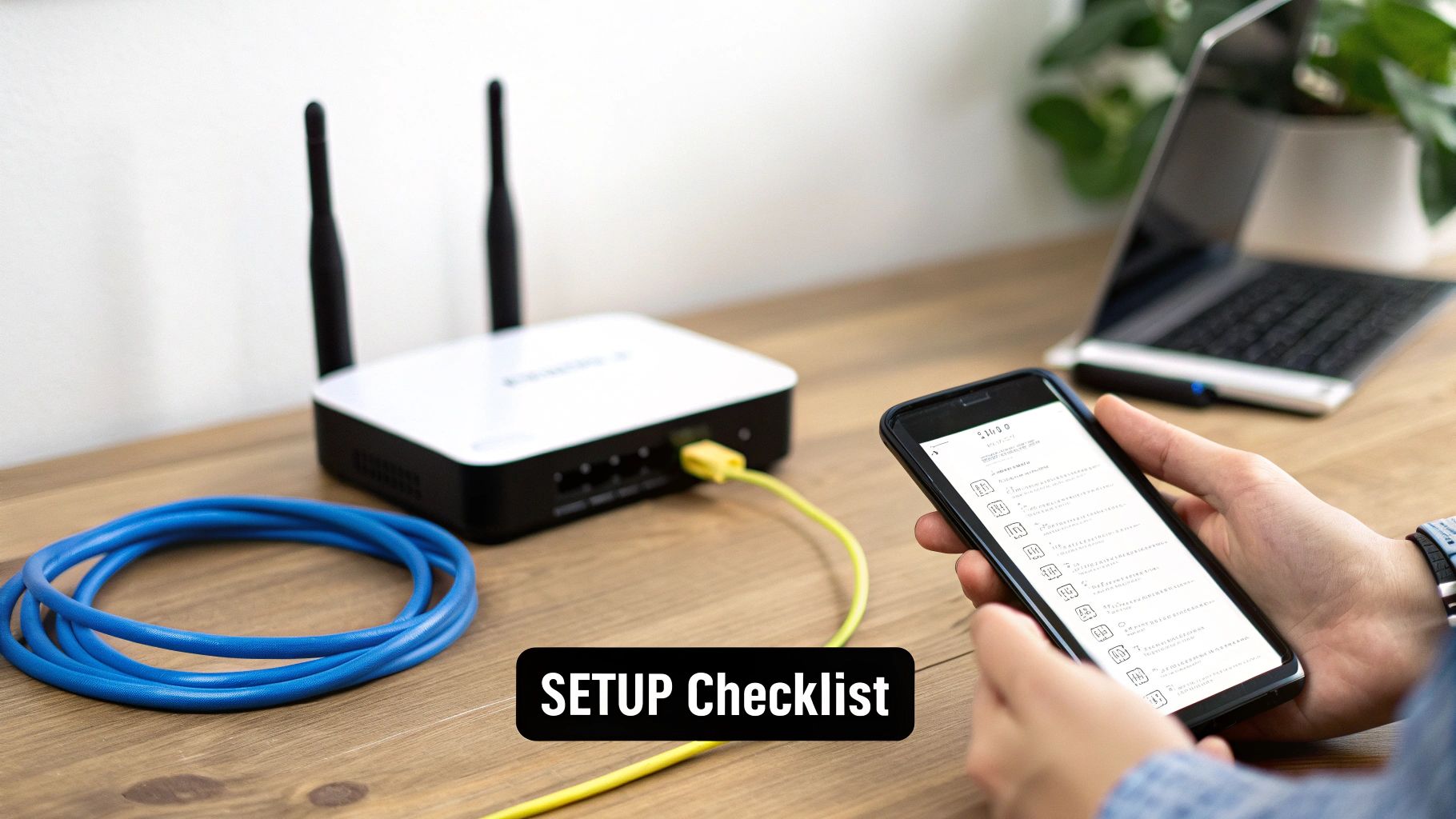
Your Go-To Setup Checklist
Once the new router is out of the box, a methodical setup is what separates a good network from a great one. Follow these steps to get a rock-solid and secure connection from day one. If you want a more detailed guide, this resource on how to install a new router is excellent.
- Find the sweet spot. Place the router in a central, elevated location—away from thick walls or metal objects.
- Plug it in. Connect your modem to the router's WAN port, then power everything on.
- Secure your network. Immediately change the default network name (SSID) and password. Make it unique and strong.
- Lock it down. Go into the settings and enable WPA3 encryption if available. Disable WPS—it's a known security risk.
- Get the latest updates. The very first thing you should do is check for and install the latest firmware. Reboot if it asks you to.
- Prioritize your traffic. Set up QoS rules. Give your work computer and gaming console top priority so they never lag.
- Create a guest network. This is a must. It keeps visitors and your less-secure IoT gadgets off your main network.
Running cables through walls for the best connection? Our guide on https://automatedhomeguide.com/home-smart-wiring/ has some great best practices.
Insight: I've seen a proper, thought-out setup boost Wi-Fi speeds by as much as 30% in the far corners of a house. It really makes a difference.
Fine-Tuning Your Router Placement
Don't just stick the router on the nearest shelf and call it a day. The physical location is hugely important. Think of it as the center of your home's digital universe.
Keep it away from common signal killers like microwaves, cordless phone bases, or large metal filing cabinets. Before you commit to a spot, use a Wi-Fi analyzer app on your phone to walk around and see where the signal is strongest. You might be surprised that a spot by a window gives you better overall coverage than inside a media cabinet.
A few final tweaks will keep your network running smoothly for years:
- Adjust the antennas. If your router has them, try tilting them at different angles (15 degrees can make a surprising difference) to fine-tune the signal's reach.
- Schedule a reboot. Most modern routers let you schedule an automatic weekly reboot. This clears the cache and keeps things running fresh.
- Back up your settings. Once you have everything configured perfectly, save a backup of the configuration file. If you ever need to reset the router, you can restore your settings in a click.
Answering Your Top Router Questions
Choosing a router always brings up a few key questions. I get asked these all the time, so let's clear up some of the most common points of confusion to make sure you're confident in your choice.
How Many Devices Can a Router Actually Handle?
Router boxes love to brag about supporting over 100 devices, but that's a lab-tested, best-case scenario. In the real world, a solid mid-range Wi-Fi 6 router can comfortably keep 25–30 active devices running smoothly. That covers all your usual suspects: laptops, phones, smart speakers, cameras, and thermostats.
The real bottleneck isn't the raw number of connections, though—it's what those devices are doing. Four phones scrolling through Instagram barely make a dent. Four simultaneous 4K streams? That’s a whole different story.
- For the Power User: If your home is a tech hub full of 4K TVs, gaming consoles, and a growing army of smart gadgets, you absolutely need a router with MU-MIMO and OFDMA. These technologies are specifically designed to juggle dozens of demanding connections without breaking a sweat.
- For Everyday Use: Have fewer than 15 devices that are mostly used for web browsing, email, and some HD streaming? Pretty much any modern Wi-Fi 5 or Wi-Fi 6 router will do the job just fine.
Will a Mesh System Really Help My Gaming?
Absolutely, a mesh system can be fantastic for gaming, but there’s a catch: you have to set it up right. The magic of mesh for gaming is its ability to slash latency (ping) by letting you place a node right next to your PC or console. This drastically shortens the wireless trip for your data, giving you a much more stable link.
To get that competitive edge from a mesh network, here’s what to look for:
- Wired Backhaul: This is the gold standard. Connecting your mesh nodes to each other with an Ethernet cable creates a private, super-fast highway for their communication. It leaves the entire Wi-Fi spectrum free for your devices and is the single best thing you can do for gaming latency.
- A Tri-Band System: Can't run cables? A tri-band mesh kit is the next best thing. It has a third, dedicated wireless band that the nodes use to talk to each other, acting as a "wireless backhaul" and keeping your gaming traffic out of the crossfire.
- Wi-Fi 6 (or Higher): Newer Wi-Fi standards are simply better at managing a crowded network, which is critical when a split-second lag can mean the difference between winning and losing.
What Kind of Speed Do I Need for 4K Streaming?
Netflix and other services will tell you that a steady 25 Mbps is all you need for a single 4K stream. While technically true, that's the absolute bare minimum and assumes nothing else is happening on your network. We know that's rarely the case.
My personal rule of thumb is to get a router with a throughput rating at least double your internet plan's speed. So, if you have a 500 Mbps internet plan, a router rated for AC1200 or AX1800 (or better) gives you plenty of overhead for other activities.
Remember, if you have multiple people streaming in 4K, gaming, and jumping on video calls simultaneously, you need to plan for that peak usage. Add up the potential bandwidth demands and make sure both your internet plan and your router are up to the task.
How Often Should I Be Updating My Router?
It's a good habit to check for firmware updates every few months. Even better, just turn on the automatic update feature if your router has one—set it and forget it. These updates are far more important than most people realize.
First, and most importantly, is security. Router manufacturers are constantly finding and patching security holes that could otherwise let intruders onto your network. Second is performance. Updates frequently squash bugs, improve stability, and can even unlock new features that make your Wi-Fi run faster and more reliably.
At Automated Home Guide, our goal is to help you build a smarter, more reliable connected home. We've got plenty more guides to help you find the right tech for your life.
For more hands-on advice, come visit us at https://automatedhomeguide.com.




Leave a Reply