Dipping your toes into home automation? Smart plugs that work with Apple HomeKit are, without a doubt, the easiest place to start. These handy little gadgets can turn just about any ordinary appliance—a lamp, a fan, even your coffee maker—into a smart device you can control right from your iPhone or with a simple Siri command. It's a fantastic way to add convenience, a little security, and even trim your energy bills.
Your First Step into a Smarter Home

Imagine being able to simplify parts of your day with just a word or a tap. That's the real magic of a smart plug. They're often the most affordable and straightforward entry point into Apple’s HomeKit world, serving as the first building block for a home that actually responds to you.
Think of a smart plug as a small, clever adapter. You plug it into your wall, then plug your device into it. Just like that, your appliance is now part of your smart home network, ready to be controlled, scheduled, and automated through Apple's secure Home app. This guide will walk you through everything you need to know, from the basics to the fun stuff.
Core Concepts Explained
The real power of these plugs comes from how well they work within the Apple HomeKit system. If you're new to all this, a few key ideas will help you make a smart buying decision. (If you're looking for a broader overview, our guide on how to get started with a smart home is a great primer: https://automatedhomeguide.com/smart-home-for-beginners/).
To get you up to speed quickly, here's a breakdown of the key technologies and benefits of smart plugs that work with Apple HomeKit.
This table offers a quick snapshot of the essential concepts you'll encounter when dealing with HomeKit-compatible smart plugs.
Apple HomeKit Smart Plugs at a Glance
| Concept | What It Means for You | Primary Benefit |
|---|---|---|
| Connectivity | Your plug connects to your network using Wi-Fi or Thread. | Wi-Fi is universal and easy; Thread creates a super-reliable mesh network for your smart devices. |
| Home Hub | You need an Apple TV or HomePod/HomePod mini to act as the brain of your smart home. | This lets you control your devices when you're not at home and run automations. |
| Scenes/Automations | You can group actions together ("Movie Night") or set them to trigger automatically. | True automation—your home works for you without you having to ask. |
Understanding these basics will make it much easier to choose the right plug and get the most out of it from day one.
The market for these plugs is growing like crazy. In 2024, the global smart plug market hit a value of USD 3.52 billion and is expected to skyrocket to USD 30.50 billion by 2034. For Apple enthusiasts, keeping an eye out for models that support Matter—the new universal standard for smart homes—is a great way to ensure your gear will work with everything else down the road.
The Power of Simplicity: The real beauty of a HomeKit smart plug is that it adds intelligence to things you already own and love. You don't have to buy a whole new lamp; you just make your favorite one smarter. That simple upgrade is often the "aha!" moment that gets people hooked on home automation.
As you start adding more devices, you'll quickly realize how important a solid network is. While smart plugs use your Wi-Fi or Thread network, thinking about your home's overall connectivity is key. Sometimes, solving one problem, like how to boost mobile phone signal at home, can give you insights into creating a stronger wireless environment for all your smart gadgets. After all, a reliable network is the foundation that holds your entire smart home together.
How Apple HomeKit Unifies Your Smart Home
Think of Apple HomeKit less as a specific product and more like a universal translator for all your smart home gadgets. It's the framework that lets a smart plug from one company talk seamlessly to a smart bulb from a totally different one. This means you can ditch the dozen different apps on your phone and control everything from a single, unified command center: Apple's Home app.
At its core, HomeKit is built on a rock-solid foundation of security and privacy. While some platforms might be busy analyzing your usage patterns, HomeKit is designed from the ground up to keep your data—what’s on, what’s off, and when—encrypted and under your control. That commitment to privacy is a huge reason why so many people specifically look for smart plugs that work with Apple HomeKit.
The Role of a Home Hub
To really unlock what HomeKit can do, you need a central command post for your home. This is the job of a Home Hub—which is simply an Apple device that’s always at home and connected to your network.
A Home Hub is non-negotiable for two critical functions:
- Remote Access: It acts as a secure bridge, letting you control your smart plugs and other devices from anywhere on the planet. Without a hub, you can only control things when your iPhone is on your home Wi-Fi.
- Automations: The hub is the brains behind your automated routines, running them like clockwork even when you’re not there. It’s what makes sure the lights come on at sunset or your fan starts up right before you walk through the door.
An Apple TV (the 4K models work best), a HomePod, or a HomePod mini can all serve as your Home Hub. It just sits there quietly in the background, securely managing your smart home without you needing to do a thing.
HomeKit has come a long way since it first launched back in 2014. The early days were all about Wi-Fi, but newer technologies like Thread have made devices faster and far more reliable. The smart plug market itself has exploded; the Wi-Fi segment alone is projected to hit $1.1 billion by 2028. And with the arrival of the Matter standard in late 2022, getting devices to play nicely together has become even easier, making the whole ecosystem more future-proof.
Scenes and Automations: The Heart of a Smart Home
This is where the real fun begins. HomeKit goes way beyond just turning things on and off with two powerful features that make your home feel truly alive.
Scenes are basically pre-set commands that trigger multiple actions at once. For example, you could create a "Movie Night" scene that turns on the smart plug for your TV, dims your smart lights, and switches on a small lamp in the kitchen for snack runs—all with a single tap or voice command.
Automations are where you get true, hands-off convenience. These are rules that run automatically based on a specific trigger, like the time of day, your location, or another device's action.
Here’s a taste of what you can do with a HomeKit smart plug:
- Location-Based: Have the lamp in your entryway automatically turn on the moment the first person arrives home.
- Time-Based: Schedule the smart plug for your coffee maker to power on at 6:30 AM on weekdays, so your brew is ready when you are.
- Sensor-Based: Pair a plug with a HomeKit motion sensor to automatically turn on a fan whenever someone enters the room.
By combining these simple elements, HomeKit transforms a bunch of separate gadgets into a home that responds to you. You can learn more about how the system works by checking out our detailed article explaining what HomeKit is. This foundation makes it incredibly easy to start with just one smart plug and build out a more connected, intelligent home over time.
Choosing the Right HomeKit Smart Plug
Let's be honest, picking a smart plug can feel a bit like standing in the cereal aisle—there are way too many options. But when you’re building an Apple-centric smart home, finding the right smart plugs that work with Apple HomeKit is about more than just the price. You need to think about how it connects, if it’s built to last, and even how big it is.
Think of it this way: the right smart plug just disappears into the background, doing its job without any fuss. The wrong one, however, can be a constant source of headaches, with dropped connections and frustrating glitches.
This guide will walk you through the most important things to look for, from the tech inside to the physical design, so you can make a choice you’ll be happy with for years to come.
Connectivity: The Wireless Foundation
The first big decision you'll make is how your plug talks to your network. For HomeKit, this usually comes down to two choices: Wi-Fi or Thread. Getting this right is fundamental to building a smart home that's reliable instead of infuriating.
Wi-Fi Plugs: These are the old standby. They connect directly to your home's Wi-Fi router, just like your phone or computer. The setup is straightforward because you already know how Wi-Fi works. The downside? As you add more Wi-Fi gadgets, you can start to clog up your network, which might lead to slower speeds or devices randomly dropping offline.
Thread Plugs: This is the newer, smarter kid on the block, designed from the ground up for smart home devices. Instead of every device shouting at your router, Thread-enabled gadgets create their own dedicated mesh network. Each new Thread device you add actually strengthens the network by acting as a signal repeater, making the whole system faster and more resilient.
To use Thread, you'll need a Thread border router, like a newer Apple TV 4K or a HomePod mini. It’s an extra piece of kit, but the payoff is a lightning-fast and super-dependable network—a must-have for anyone serious about their smart home. If you want to dive deeper into how these technologies work, check out our complete guide to smart home protocols.
Comparing HomeKit Connectivity: Wi-Fi vs. Thread
This table offers a quick side-by-side look at the two main connectivity options for HomeKit smart plugs, helping you decide which is the best fit for your home.
| Feature | Wi-Fi Smart Plugs | Thread Smart Plugs |
|---|---|---|
| Setup Simplicity | Very easy; connects directly to your existing router. | Requires a Thread border router (e.g., HomePod mini, Apple TV 4K). |
| Network Impact | Can congest your Wi-Fi network as you add more devices. | Creates a separate, dedicated mesh network, reducing Wi-Fi load. |
| Reliability & Speed | Can be prone to drop-offs if Wi-Fi signal is weak. | Extremely fast and reliable; the network gets stronger with each device. |
| Power Consumption | Generally higher power consumption. | Designed for very low power consumption. |
| Best For | Beginners or homes with just a few smart devices. | Anyone building a comprehensive, fast, and future-proof smart home. |
Ultimately, if you're just starting out with one or two plugs, Wi-Fi is perfectly fine. But if you plan on building out a larger smart home, investing in Thread now will save you a lot of trouble down the road.
Look for the Logos: Certification Matters
To make sure you get a plug that works flawlessly right out of the box, keep an eye out for two key logos on the packaging. These are your guarantee that the device will play nice with your Apple ecosystem.
The most critical one is the "Works with Apple Home" badge. This is the official seal of approval from Apple, confirming the device integrates directly and securely with HomeKit. No weird workarounds, no mandatory third-party apps—it just works.
The second logo to look for is "Matter Certified." Matter is the new universal language for smart home devices, designed to let products from different companies work together. A Matter-certified plug is a smart buy because it’s future-proof. You'll know it will still work even if you add Google or Amazon devices to your home later on.
This flowchart shows how HomeKit decides to control your devices, and it really highlights why having a Home Hub is so important for controlling things when you're away.

As you can see, local control is simple, but remote access relies on that secure connection brokered by your Home Hub.
Practical Considerations: Size and Power
Finally, don't forget about the physical plug itself. These seemingly small details can make a huge difference in day-to-day use.
Size and Shape: We’ve all seen them—those bulky smart plugs that hog the entire wall outlet, making the second socket useless. Look for compact, modern designs that are often offset to leave the other outlet completely free. It’s a minor detail that becomes a major win.
Even more important is the plug's power rating, measured in amperes (A). This tells you what kind of appliances you can safely connect to it.
10A Plugs: These are great for your everyday, low-power items like lamps, phone chargers, TVs, and small fans.
15A Plugs: For anything that generates heat or has a big motor, you absolutely need a heavy-duty 15A plug. This includes things like space heaters, coffee makers, portable air conditioners, or irons.
Using an underrated plug for a high-power appliance isn't just a bad idea—it's a serious fire risk. Always check the power needs of the appliance and match it with a smart plug that can handle the load. By thinking through connectivity, certification, and these practical details, you can find the perfect HomeKit plug that will serve you well for years to come.
Your First HomeKit Smart Plug Setup Guide
Getting your first smart plug set up is a refreshingly simple introduction to home automation. If you've ever felt intimidated by other smart home ecosystems that can feel like a science project, you'll appreciate how Apple designed this process. Honestly, if you can use an iPhone, you can set up a HomeKit smart plug.
The whole thing really just boils down to plugging it in and scanning a code. You won't have to fiddle with complex network settings or have any special technical skills. Your iPhone’s camera and the Home app do all the heavy lifting, securely adding the new device to your home in just a few moments.
The Five-Step Setup Process
Getting a new smart plug that works with Apple HomeKit up and running is a quick affair. Just follow these steps, and you’ll be controlling your first lamp or fan in minutes.
- Plug It In: Unbox your smart plug and pop it into any standard wall outlet. You should see a little indicator light blink on, which tells you it has power and is ready to connect.
- Open the Home App: Grab your iPhone or iPad and open the Home app. This is mission control for all your HomeKit gadgets.
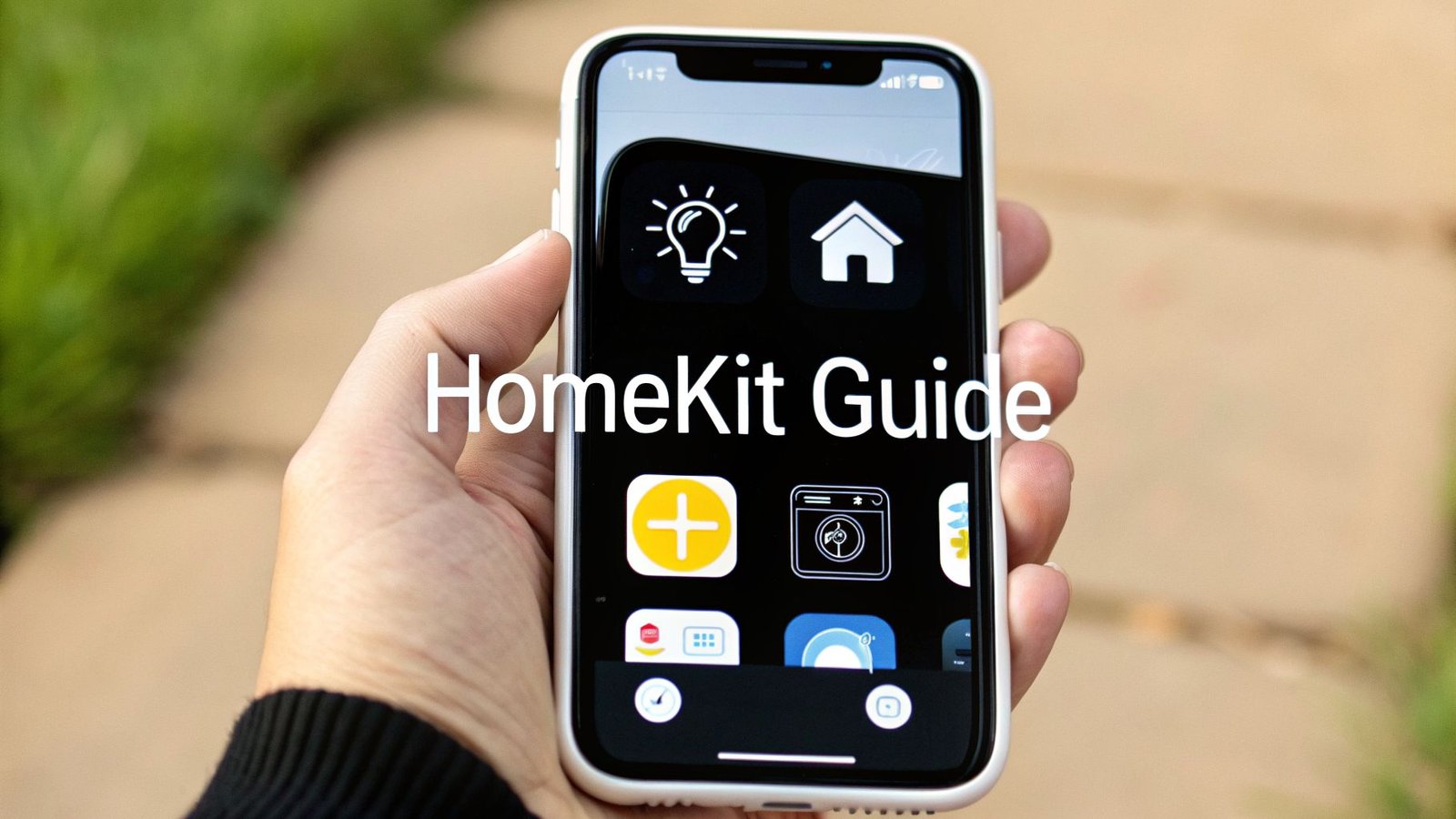
- Add Your Accessory: Tap the ‘+’ icon, usually in the top right corner, then choose “Add Accessory.” This fires up your camera, getting it ready to scan the unique HomeKit code.
- Scan the HomeKit Code: Look for the eight-digit HomeKit setup code either on the plug itself or in its manual. It’s always next to a little icon that looks like a house. Just point your camera at this code.
This image shows exactly what your screen will look like when you're ready to scan.
As soon as the app recognizes the code, it securely adds the device to your home network—no Wi-Fi passwords needed.
- Configure Your Plug: Now, the Home app will guide you through the final touches. You’ll assign the plug to a room (like “Living Room”) and give it a specific name. My advice? Be descriptive! Names like “Bedside Lamp” or “Coffee Maker” make it way easier to control with Siri later on.
And that’s really it! Your plug is now live in the Home app, ready for you to command.
Troubleshooting Common Setup Issues
Even with a process this simple, you might hit a small snag. Don’t worry—these are almost always easy to fix.
Pro Tip: Before you start pulling your hair out, make sure both Wi-Fi and Bluetooth are turned on in your iPhone’s Control Center. HomeKit uses them together for the initial handshake with a new device, so having them active is key.
If your plug is being stubborn and won't show up or becomes unresponsive, here are a few things to try:
- Check Your Network: Make sure your iPhone is connected to the same 2.4 GHz Wi-Fi network your smart plug needs to use. Many smart home devices can't connect to 5 GHz networks during setup, which is a common hang-up.
- Move Closer: Sometimes, the signal is just too weak. Try setting the plug up in an outlet closer to your Wi-Fi router first. Once it's connected, you can move it back to where you actually want it.
- Power Cycle the Plug: The classic "turn it off and on again" trick works wonders. Unplug the smart plug, give it about 10 seconds, and plug it back in. This often clears up any temporary glitches.
- Perform a Factory Reset: If all else fails, a factory reset is your last resort. This will return the plug to its out-of-the-box state. The exact method is different for each brand, but it usually involves holding a small button on the plug for 10-15 seconds until an indicator light starts flashing. After that, you can start the setup process over from scratch.
Unlocking Creative HomeKit Automations

Alright, so you’ve got the hang of turning things on and off with your phone. That’s the first step. Now, let’s get to the fun part—the real magic of smart plugs. This is where your home stops being a collection of gadgets and starts feeling genuinely smart.
By tapping into HomeKit’s powerful Scenes and Automations, you can teach your home new tricks. Think of your smart plug less as a remote switch and more as the key that lets your old, "dumb" appliances join your smart home orchestra.
From Simple Commands to Smart Scenes
The easiest way to dip your toes into automation is with Scenes. A Scene is just a fancy name for a one-tap command that controls a whole bunch of devices at once.
The classic "Movie Night" scene is a perfect example. With one tap or a quick "Hey Siri," you could have:
- The TV’s smart plug kick on your entertainment system.
- Your smart lights dim down to a cozy 20%.
- A pesky lamp in the corner (plugged into another smart plug) turn off to kill the screen glare.
See? You're no longer fumbling with three different switches or apps. You’re setting a mood, instantly. That’s what makes a smart home feel so good.
Automations That Work for You
While you have to trigger a Scene yourself, Automations are the true "set it and forget it" heroes. They run in the background, making your home react to your schedule and surroundings without you lifting a finger. With smart plugs that work with Apple HomeKit, the possibilities are practically endless.
Here are a few ideas to get your gears turning:
- Wake-Up Routine: Have a plug turn on your coffee maker at 6:45 AM, just before your alarm goes off. Nothing beats waking up to the smell of fresh coffee.
- Sunset Lighting: Create an automation that flips on your living room lamp right at sunset. Your home will always feel warm and welcoming as evening rolls in.
- Holiday Cheer: Plug your festive lights into an outdoor smart plug and set them to turn on at dusk and off at midnight. No more forgetting to unplug them before bed.
These little automations might seem small, but they add up, removing tiny hassles from your day and making life just a little bit smoother.
Automations aren’t just for convenience; they are also powerful tools for energy management and security. A plug that automatically turns off a fan in an empty room or makes it look like someone is home can have a real impact.
Energy Monitoring and Cost Savings
Many newer HomeKit smart plugs include a killer feature: energy monitoring. This lets you see exactly how much electricity an appliance is sucking down, finally exposing the energy vampires in your home.
By tracking this data, you can create automations to shut things off when they aren't needed, potentially trimming up to 20% from your utility bills. That’s a big deal, especially when you learn that households globally waste an estimated $200 billion a year on standby power alone. You can find more details on the smart plug market growth on skyquestt.com.
These insights transform your smart plug from a simple gadget into a smart financial tool. You can finally pinpoint what’s driving up your bill and do something about it. This blend of convenience, security, and savings is what makes these little devices one of the most powerful additions you can make to your home.
How HomeKit Keeps Your Smart Home Private
When you bring a smart device into your house, you’re making a decision about more than just convenience—you're also deciding who to trust with your personal data. In a world full of data leaks and privacy concerns, Apple HomeKit was built from the ground up with privacy as its main feature, not an afterthought.
The whole system relies on end-to-end encryption. Think of it like a secret, sealed message sent directly from your iPhone to your smart plug. The command to "turn on the lamp" is scrambled the instant it leaves your phone and can only be unscrambled by the plug itself. No one in the middle, including Apple, can peek inside and see what you’re doing.
This approach means your daily habits and routines are kept completely private. While some smart home platforms might track your usage to sell you things or build a profile on you, HomeKit’s philosophy is simple: what happens in your home stays in your home.
The Advantage of Local Control
A huge piece of HomeKit's security puzzle is its focus on keeping things local. Whenever possible, your commands travel directly over your home Wi-Fi network instead of being routed through the internet. Your iPhone is essentially talking right to your smart plugs that work with Apple HomeKit, no cloud servers required.
Even when you’re away from home and controlling devices through a Home Hub (like an Apple TV or HomePod), that connection remains secure. Your hub acts as a protected gateway, encrypting all communication between you and your house.
This "local-first" design is a game-changer. Many other systems depend on a constant internet connection to work, but with HomeKit, your automations can run smoothly and securely even if your internet goes out.
Your Role in Securing Your Smart Home
HomeKit provides a fantastic, secure foundation, but keeping your smart home safe is a partnership. A few good habits will give you total peace of mind as you add more connected devices.
Here are the absolute essentials:
- Lock Down Your Wi-Fi: Your Wi-Fi network is the front door to your digital life. Use a long, complex password with a mix of letters, numbers, and symbols to keep unwanted guests out.
- Turn On Two-Factor Authentication (2FA): Your Apple ID holds the keys to your HomeKit kingdom. Enabling 2FA adds a powerful layer of defense, requiring a second verification code before anyone can access your account—even if they steal your password.
- Keep Everything Updated: Apple regularly pushes out software updates for your iPhone, iPad, Apple TV, and HomePod. These aren't just for new features; they often contain critical security fixes. Install them right away to stay protected.
By combining the privacy-first design of HomeKit with these simple security practices, you can enjoy all the perks of a smart home without ever having to worry about your personal data.
Your HomeKit Smart Plug Questions Answered
Jumping into the world of smart homes can feel like learning a new language. Even with a system as user-friendly as Apple HomeKit, it's totally normal to have a few questions before you start adding new gadgets. We've rounded up the most common questions we hear about smart plugs that work with Apple HomeKit to give you the straight scoop.
Think of this as your cheat sheet to avoid common pitfalls, understand what you're buying, and get your new smart plugs working perfectly from the get-go.
Do All Smart Plugs Work with HomeKit?
This is the big one, and the answer is a firm no. For a smart plug to work flawlessly with the Home app and Siri, it needs to be officially certified by Apple. The easiest way to know for sure is to look for the "Works with Apple Home" logo right on the packaging or in the online product details.
While the new Matter standard is making it easier for devices to play nicely together, your safest bet for a headache-free experience is to stick with accessories that are officially blessed by Apple. It guarantees a smooth setup and reliable performance down the road.
Can I Control My Plugs When I'm Not Home?
Absolutely, but there's a small catch: you'll need a Home Hub. Think of a Home Hub as the brain of your smart home. It's an Apple device that stays at your house, securely connecting your HomeKit accessories to the internet so you can reach them from anywhere. This can be a HomePod, a HomePod mini, or an Apple TV.
Without a hub, you can only control your plugs when your iPhone is on the same Wi-Fi network. The hub is the key that unlocks remote control and lets all your cool automations run on their own, whether you're home or not.
Wi-Fi vs. Thread Plugs: What's the Difference?
Let’s break this down. Wi-Fi plugs connect straight to your router, just like your phone or computer. It's a simple and direct connection, but if you start adding dozens of smart devices, it can sometimes bog down your home Wi-Fi network.
Thread is different. It’s a mesh network designed specifically for smart home devices. Instead of every device fighting for your router's attention, Thread devices talk to each other, creating a self-healing network. Every Thread device you add actually makes the whole system stronger, faster, and more responsive. You'll just need a Thread border router, like a newer HomePod mini or Apple TV 4K, to get started.
The bottom line? Wi-Fi is fine if you're just starting with one or two plugs. For a bigger, more reliable smart home that responds in a snap, Thread is the way to go.
Is It Safe to Use a Smart Plug with Any Appliance?
This is an extremely important safety point. The answer here is no—you can't plug just anything into a smart plug. You have to pay close attention to the plug's maximum power rating, measured in amperes (A). Most plugs are rated for 10A, but you can find heavy-duty ones built for 15A.
- 10A Plugs: These are great for your everyday, low-power items. Think lamps, fans, phone chargers, TVs, and holiday lights.
- 15A Plugs: You need one of these for appliances that draw a lot of power. We’re talking about space heaters, portable air conditioners, coffee makers, or an iron.
Seriously, don't mess around with this. Plugging a power-hungry appliance into a plug that can't handle it is a major fire risk. Always check the power label on your appliance and match it with a smart plug that can safely handle the load.
At Automated Home Guide, our mission is to help you create a home that's smarter, safer, and more convenient. For more expert advice and honest reviews on the best smart home gear, come see us at https://automatedhomeguide.com.

Leave a Reply